Editor guide to submissions
Editor guide to submissions pageThe editorial workflow in Janeway starts with the Unassigned stage, where you can find new submissions for your journal and assign them to an editor. You can also use this stage as an editorial screening stage, where you make the initial decision about submissions - whether to proceed with them or reject outright.
Unassigned submissions
Unassigned submissions sectionBy default, editors are notified by email once a new article has been submitted. This email contains a link to the submitted article. New submissions can also be accessed through the Dashboard by clicking on Unassigned. Clicking this will take you to a list of all submissions that do not yet have an editor assigned.
Note
Notifications can also be set up per article type (section) or for specific (section) editors. See information on setting up submission notifications and setting up article sections.
Reviewing submissions
Reviewing submissions sectionWhen you click on an article in the list of new submissions, you will be taken to a page with an overview of the submission.
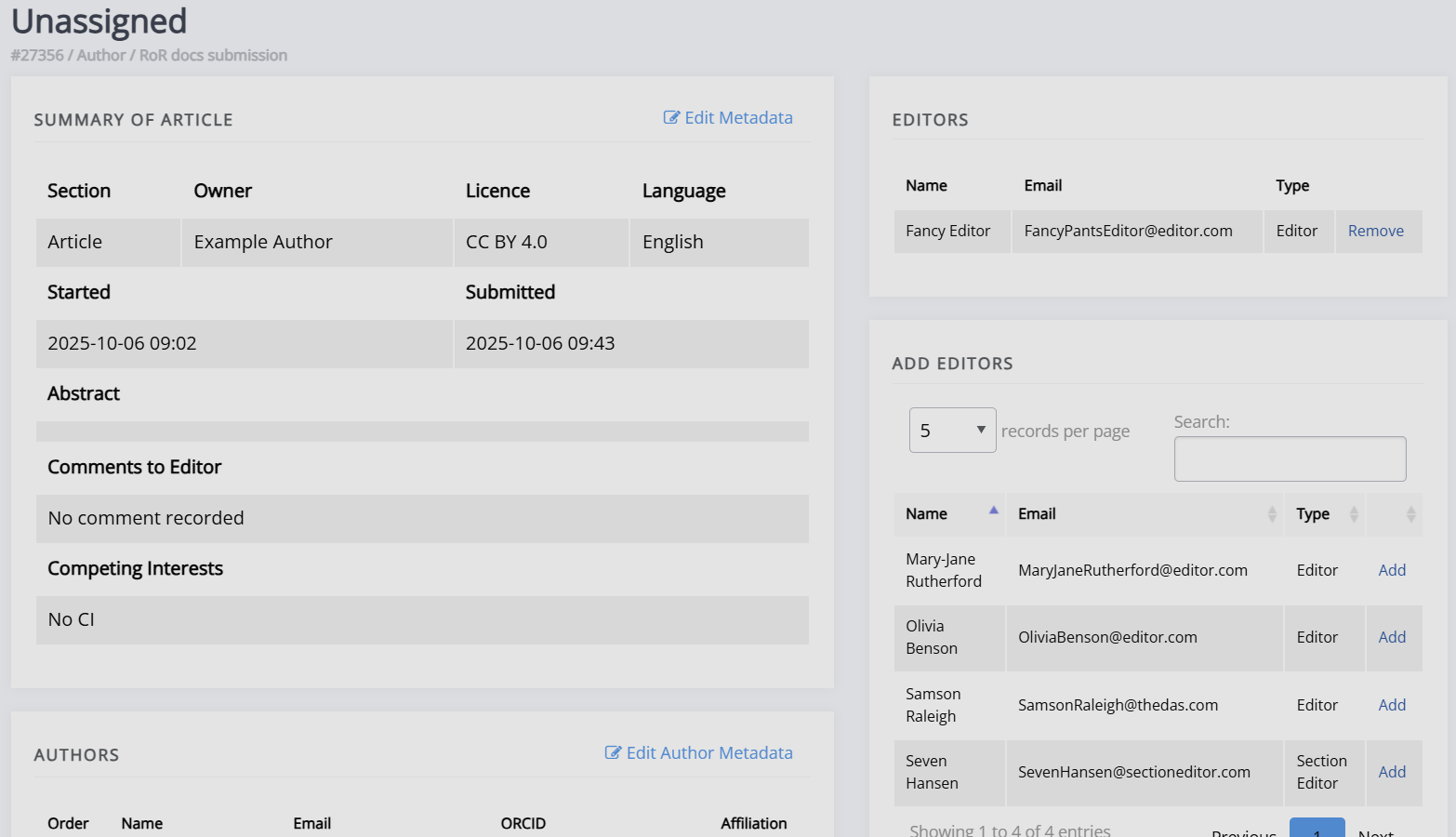
The left block of the page displays the article's metadata and author metadata, whilst workflow actions and potential editors are displayed on the right.
Before the article can enter the workflow, it must be assigned to an Editor or Section editor through Add editors.
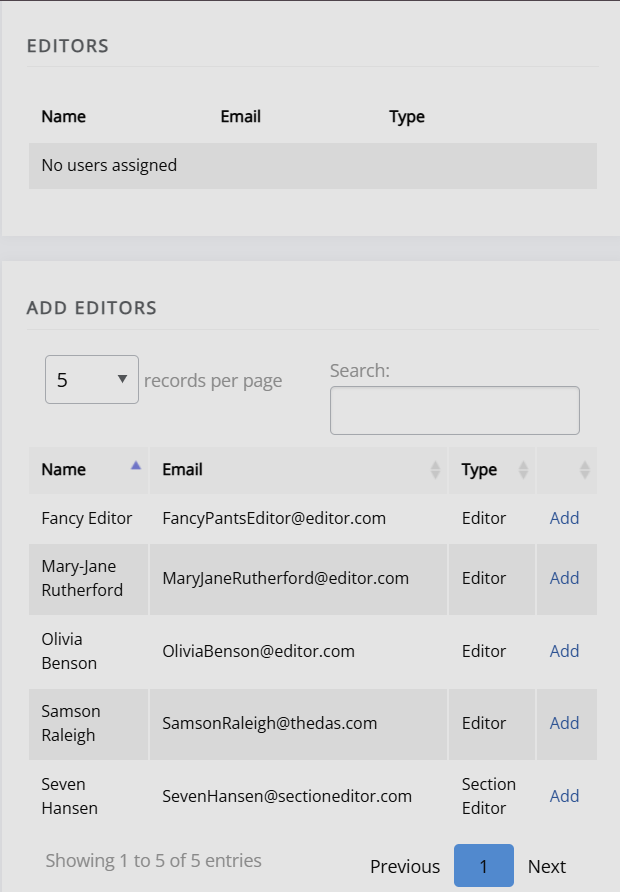
Once assigned, the editor can do one of the following through Actions:
- Move the article to review (Move to review).
- Reject the article outright (Decline article).
- Accept the article outright, skipping peer review (Accept article).
If you reject the article, there will be an opportunity to provide an explanation to the author.
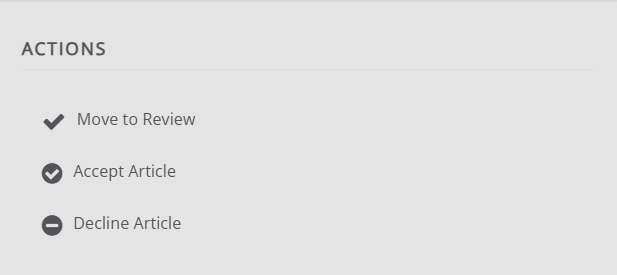
Accepting the article will move it into Copyediting, skipping peer review. You can do this for editorials or other submissions that do not require peer review.
If you move the article into review and are its author, you will initially be blocked from doing so and shown a security warning. If you override the warning, all other editors will be notified.
Projected issues
Projected issues sectionYou can also assign a submission to a projected issue. This can be set or changed at any point in the publication workflow. To set a projected issue, click Assign Projected Issue on the article page and select the chosen issue from the dropdown, and click Save. This article's projected issue will now be set. You can unset a projected issue by selecting the blank option.
The projected issue functionality can be used internally to keep track of plans and communicate with typesetters, without affecting issue assignment or displaying information publicly. It is helpful for journals that add articles to issues on a rolling basis and publish them individually.
Editing author details
Editing author details sectionOn this page, you can also edit author details. This is done by clicking Edit author metadata which will take you to a screen where you can edit author details, change the author order, change the correspondence author, or add authors. To edit an author's affiliation, click Edit author details and scroll down to the Affiliations block, where you can edit, add or remove an author's affiliation(s).
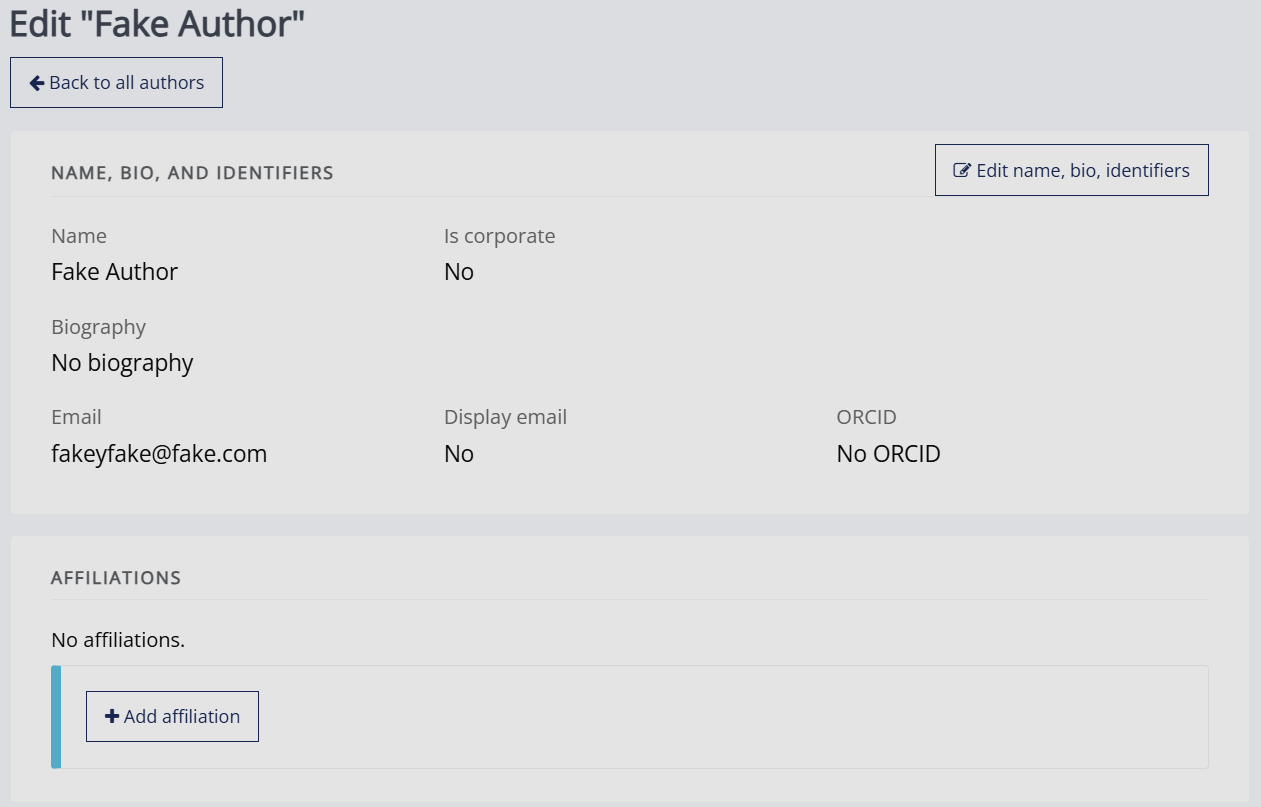
Janeway uses Research Organization Registry (ROR) to manage affiliation data, this ensures consistent formatting of affiliation data and links authors to their institutions, improving metadata quality. You can search for an institution or, if no match is found, add the details manually.