Email logs
Email logs pageAll outgoing emails sent through Janeway are tracked in the article log. This allows editors, journal managers and staff to confirm which emails have been sent, when they were sent, and (where supported) their delivery status.
Email logs are commonly used when:
- A reviewer or author reports not receiving an email.
- You need to confirm that a decision or notification was sent.
- An email needs to be resent.
Accessing email logs
Accessing email logs sectionYou can view an article's logs through Logs, documents and more, which appears in the blue workflow progress at the top of the article screen.
You can access this through:
- The article's workflow stage, or for published articles
-
The archive page
- Go to the Manager dashboard
- In the left-hand menu, scroll to the back content section.
- Click Published articles
- Select the article required.

Understanding the log entries
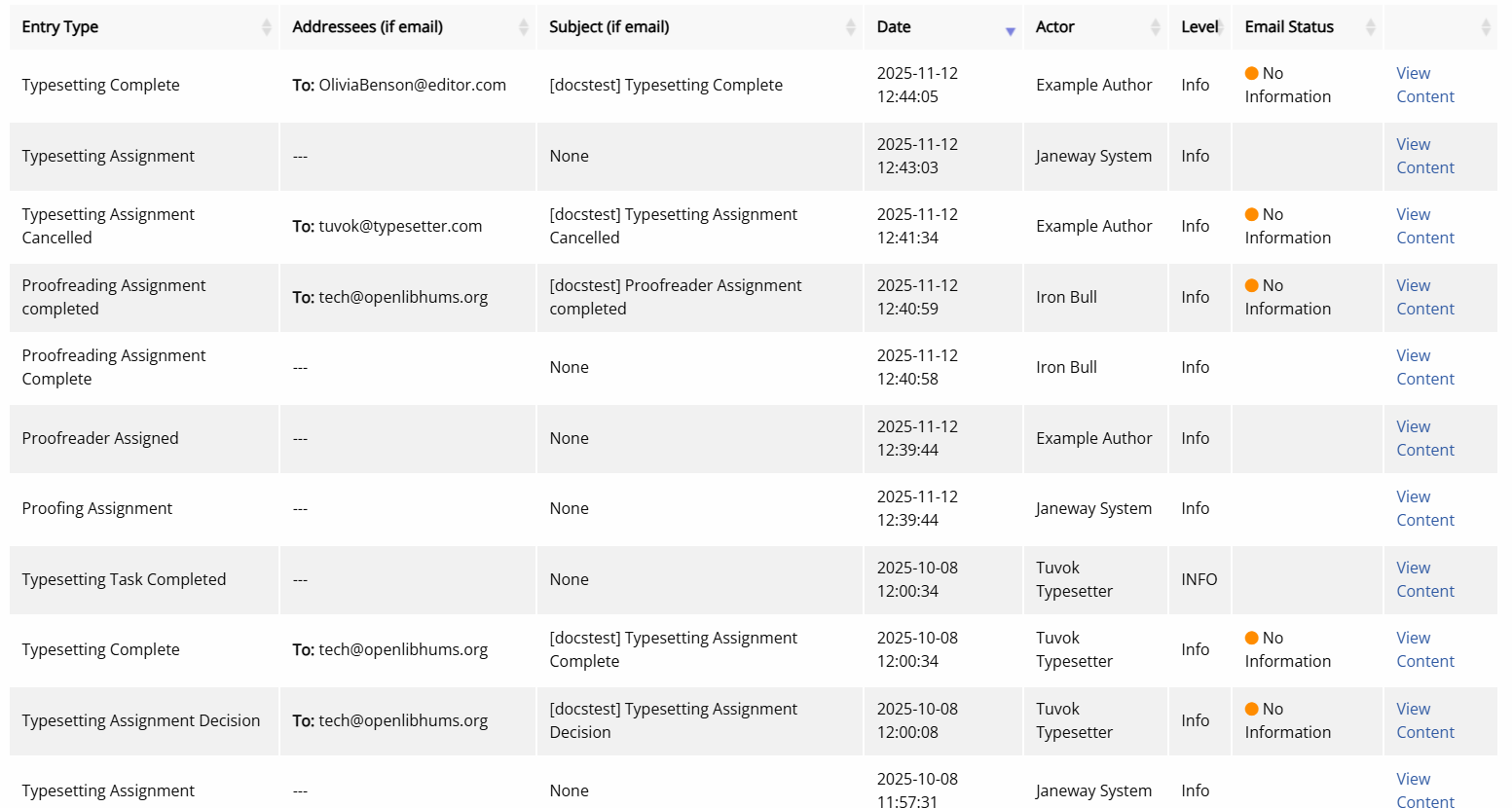
Understanding the log entries sectionEach entry in the log records an action that has taken place on the article. The following information is shown:
- Entry type
The type of action that was logged ("Review request accepted" or "Typesetting complete" for example). - Date
- Actor
The user or system process that initiated the action. - Level
A category that administrators use to group logs into reports when working on the server. For emails, the level is always "Info", and it can be safely ignored when looking at a particular log.
If the logged action relates to an email, additional details are available:
- Addressees
The recipient(s) of the email, including any CC or BCC addresses. - Subject
- Email status Information about the delivery status of the email. See Interpreting statuses below for more information.
- There is an option to click through to see the email content.
Interpreting statuses
Interpreting statuses sectionEmails sent through Janeway may display a delivery status, indicated with both text and coloured dots.
Note
If your installation does not use Mailgun, but another email service (for example, Googlemail), the coloured dots will not display meaningful status information.
Janeway can only track events that occur within the system and the configured email service. It cannot track what happens after an email leaves that service (for example, if an email is blocked by the recipient's local mail server).
If you suspect persistent email delivery issues, contact your system administrator.
Email status meanings
Email status meanings sectionThe following statuses can appear:
- No information
No delivery information is available from the email service. - Accepted
The email has been accepted by the email service for delivery. - Delivered
The email has been delivered to the recipient's mail server. - Failed
The email could not be delivered.
Emails can fail to be delivered for a variety of reasons. There might be a typo in the email address, the recipient’s mailbox might be full, the email service provider might not be operational, or the recipient might have marked emails from the sender as spam.
Note
Seeing "No information" under email status does not necessarily mean an email was not sent.
Actions
Actions sectionFrom this page there are also two things you can do:
-
Refresh the email status
This checks the latest delivery status for the email. This can be used to check the delivery status. This cannot detect issues on the recipient's side (such as local spam filtering). -
View email content
This displays the email message that was sent From this screen, you can also resend the email.