Editor guide to copyediting
Editor guide to copyediting pageThe copyediting stage allows you to assign, track and complete copyediting tasks. You can also request revisions from authors from this interface.
Assigning a copyeditor
Assigning a copyeditor sectionTo start the copyediting of an article, the first thing you will need to do is open a copyediting task and assign a copyeditor. To do this, click Add a copyedit assignment.
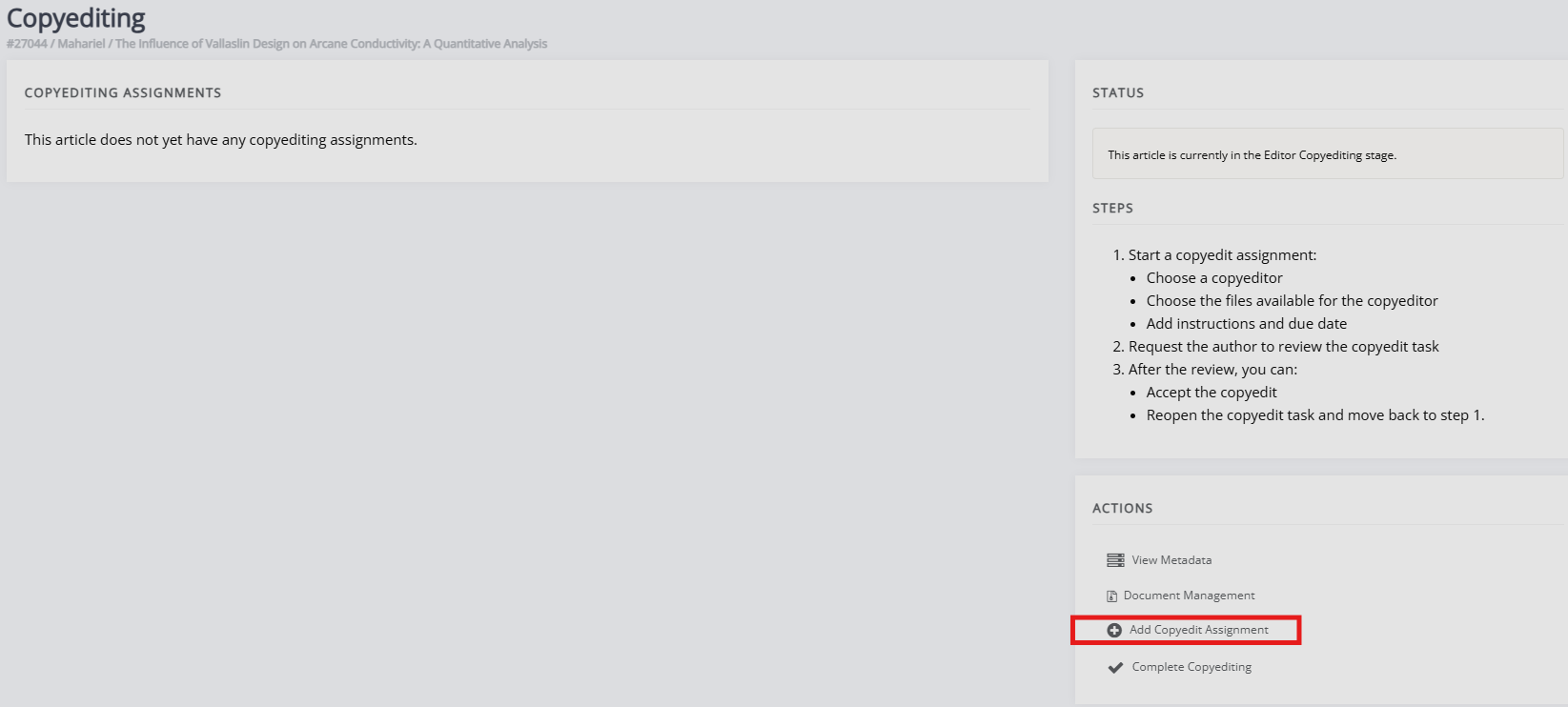
This will open a new page where you can do the following:
-
Select a copyeditor.
- Or give a user the copyeditor role, if they do not yet have it.
-
Select the files to be copyedited.
- Any of the previously uploaded manuscript files will be available for selection. If the file you require is not listed, you can upload it by returning to the previous screen and clicking on Document management.
- If required, you can also select any additional appendices or figure files.
- Leave notes for the copyeditor.
- Set a due date.
Warning
If you are both the editor and copyeditor, do not perform the copyedit through this interface. Instead, access it through the copyediting block on the main dashboard.
Once you have clicked Add copyeditor, you will be directed to the notification page where you can send an email to notify the copyeditor.
Note
If a copyeditor already has an active copyediting task for this article, they will not appear in the list, you must first close that task if you wish to assign them again.
Managing copyediting assignments
Managing copyediting assignments sectionYou can make as many copyediting assignments as needed and track them from the copyediting screen.
After an assignment has been set up, the copyeditor can log in to Janeway and complete the task. You can see the copyediting from the copyeditor's point of view in the copyeditor guide.
Before the task is accepted, you can edit the notes and due date or delete the assignment. Once the copyeditor has accepted the task, these options are removed and replaced with a Review button. The Action log will also be updated to reflect this.
Review copyediting
Review copyediting section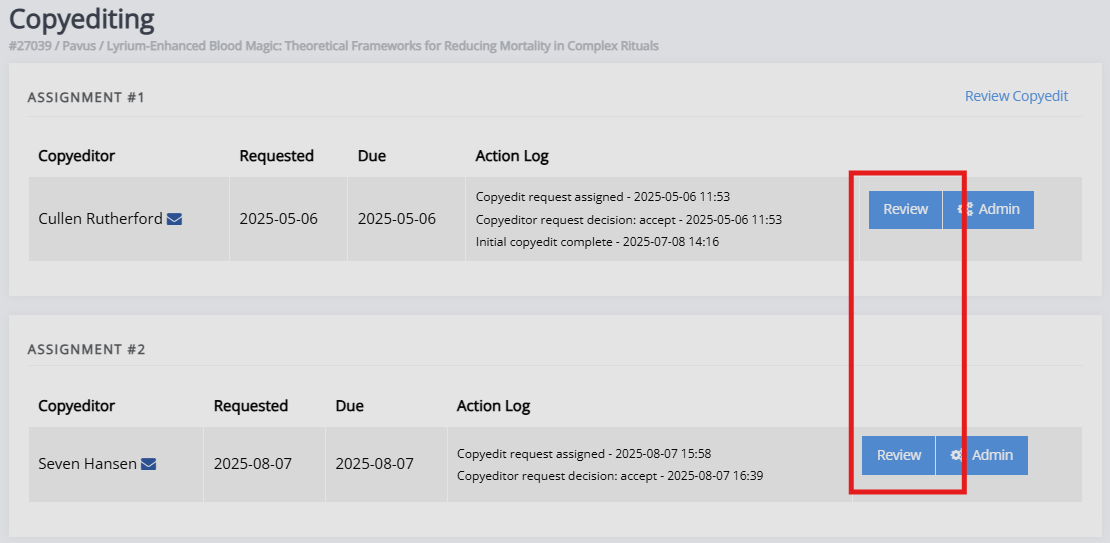
The review copyedit page presents the response from the copyeditor, including their notes and any files they uploaded. You can download the copyedited manuscript using the Download icon. You can also do one of three things under Actions on the right-hand side:
- Accept copyedit
This closes the task. - Request author review
Ask the author to review the copyedits. - Reopen the task
Ask the copyeditor to make further changes.
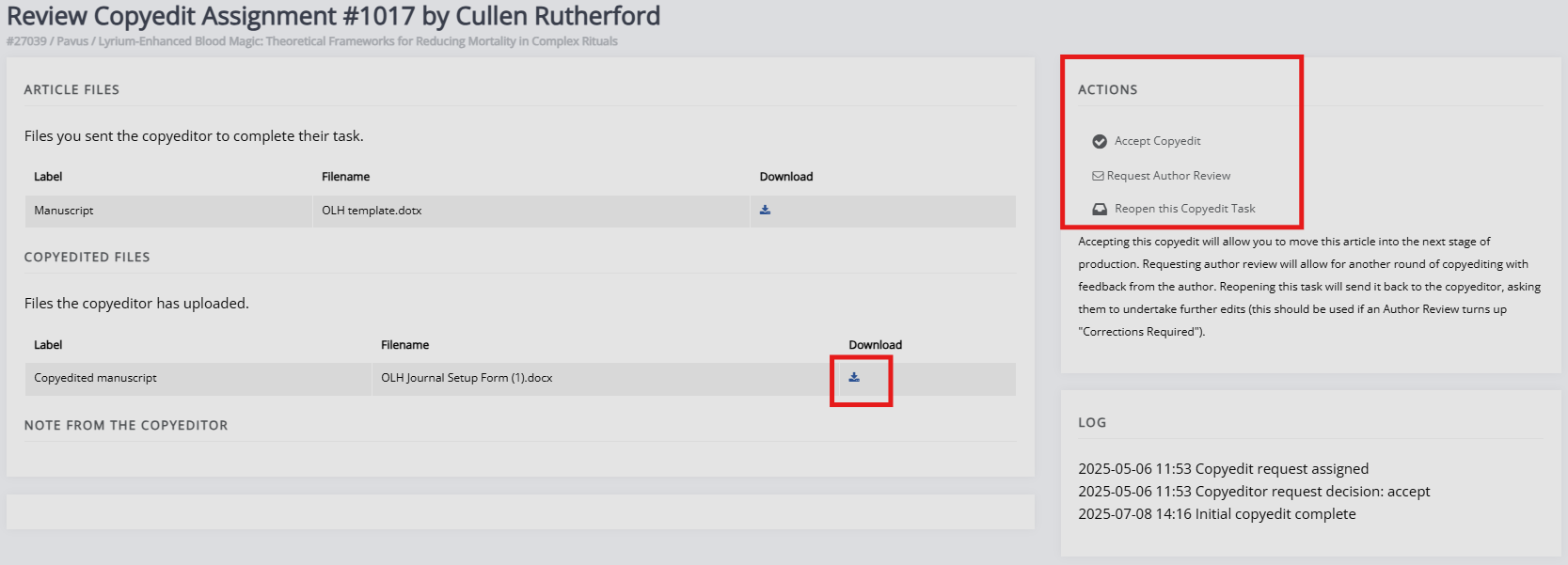
Requesting author review will ask the author to review the copyedit and inform the editor if any corrections are required. The author can also upload a file if they have made corrections or used track changes.
Reopening the task asks the copyeditor to make further changes to the manuscript file. This is often used after an author review returns “Corrections required”.
If you want to make further requests from the copyeditor after accepting/closing the assignment, you can reassign the copyeditor to a new task.
Finishing up
Finishing up sectionWhen the work copyediting the manuscript is complete, click Completed copyediting to move the article to typesetting (if you are using the standard workflow).