Article images
Article images pageArticles have three images that are used for display:
Large landscape image
Large landscape image section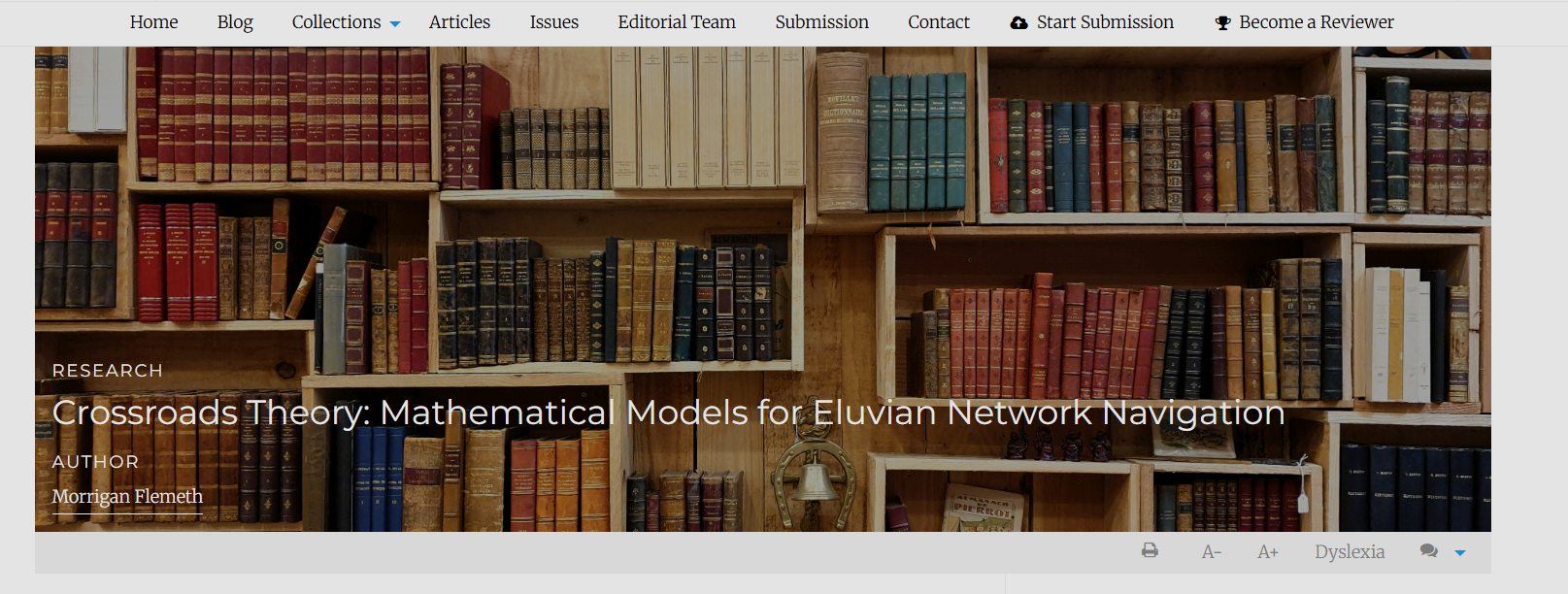
This image is used in the heading of the article page (also called a 'hero image'). This image will also be used in the carousel, popular articles and featured articles sections on the homepage, if those are enabled and an article is added to it. It is also used as the meta image if none is supplied.
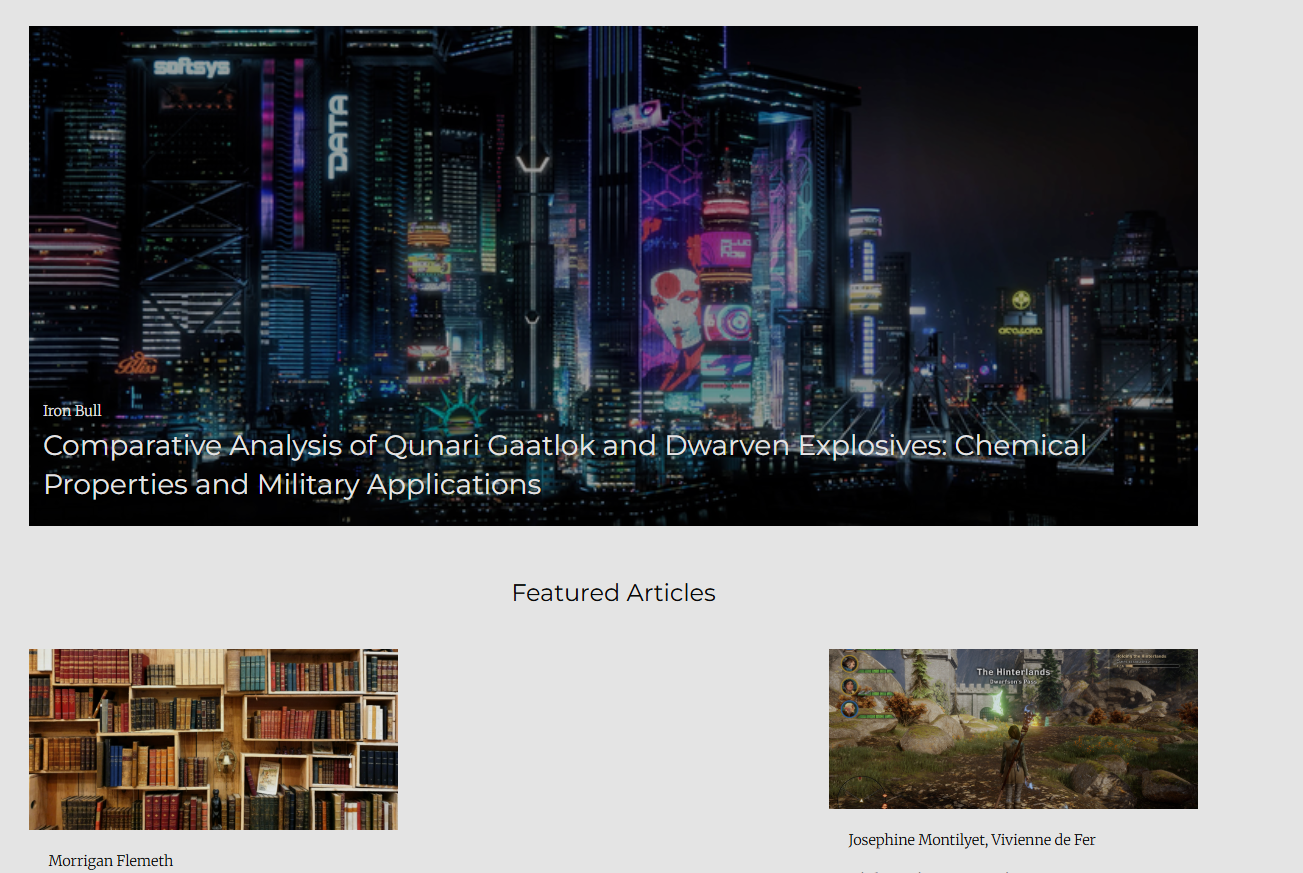
We recommend a size of 1500px by 648px. For information and journal default images, see Image guidelines.
Generally, large, landscape images are recommended to be used for the large image and avoiding images with people or bodies due to potential unexpected cropping.
If no landscape image is uploaded, the Default large image will be used where the landscape image is set to display.
Thumbnail image
Thumbnail image sectionThe thumbnail is a small square image displayed on pages listing articles such as the All articles or the Issue articles list. A square image about 432px tall and wide is best.
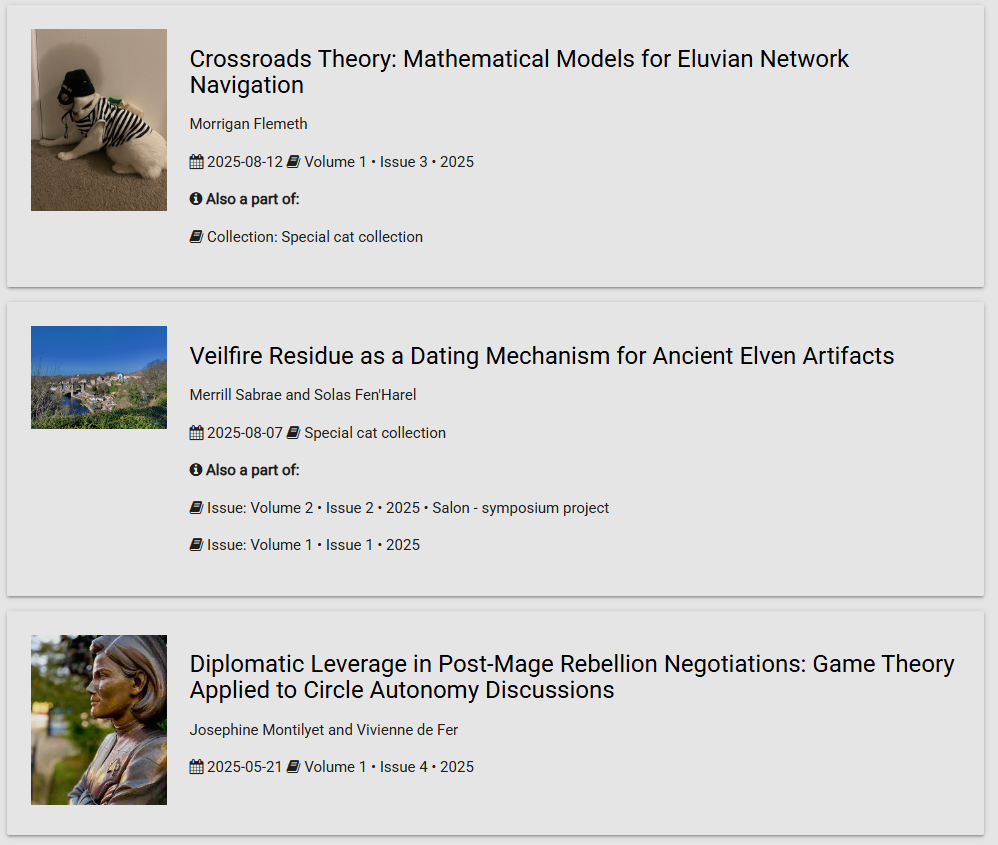
Make sure to set a default image that can show when no individual thumbnail is set. This can be done through Images under Journal settings on the Manager dashboard.
Meta image
Meta image sectionThe meta image allows you to override the image displayed on social media when the article is shared. If no meta image is supplied, the large image is used, but it may not display correctly due to its size.

Article images manager
Article images manager sectionThe Article images manager is an interface for editing all of the images for a given article. To edit the images for a given article through the Article images manager, click on Edit image.
This page is split into three blocks; one for the large image, one for the thumbnail and one for the meta image.
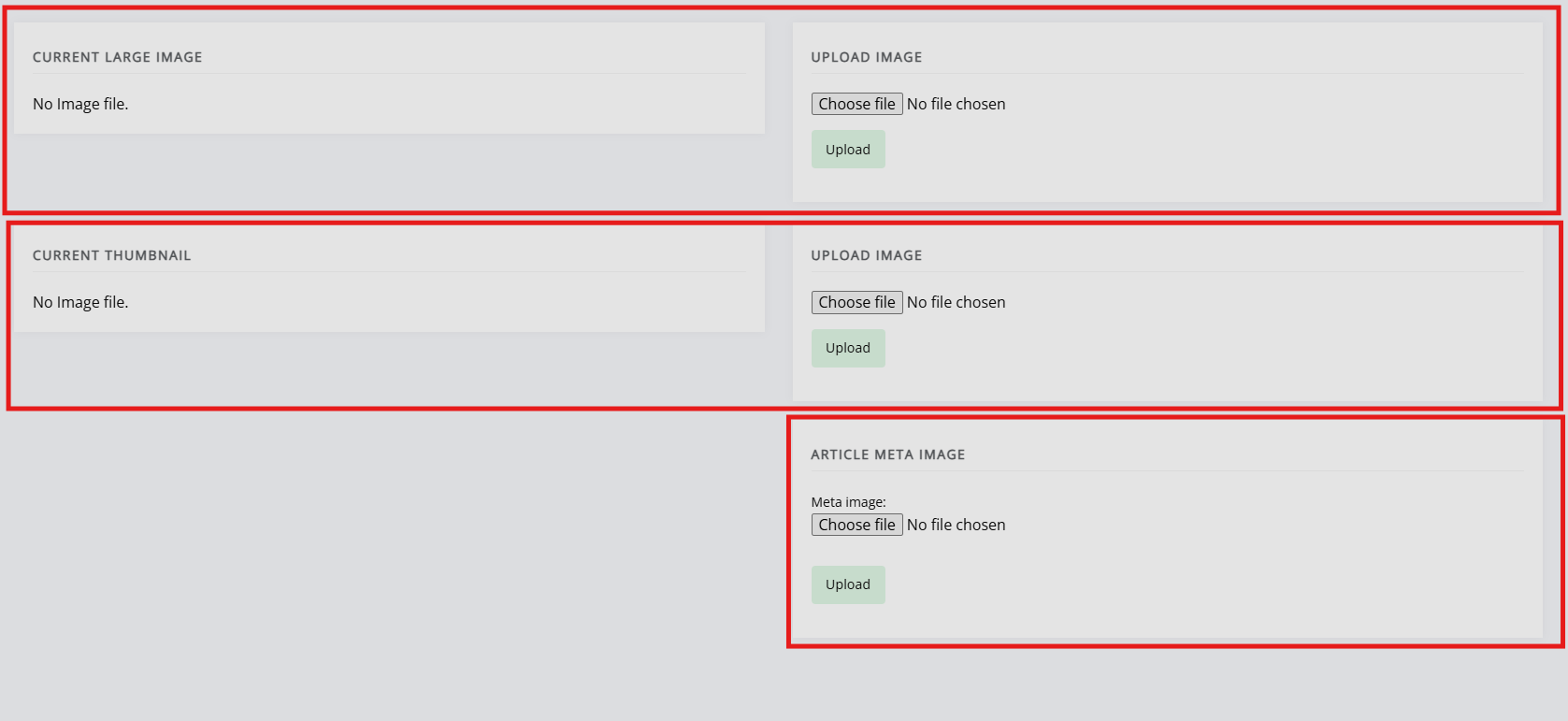
You can upload an image by:
- Clicking Choose file.
- Selecting a saved image
- Clicking Upload.
Once images are uploaded, the page will look similar to the following:
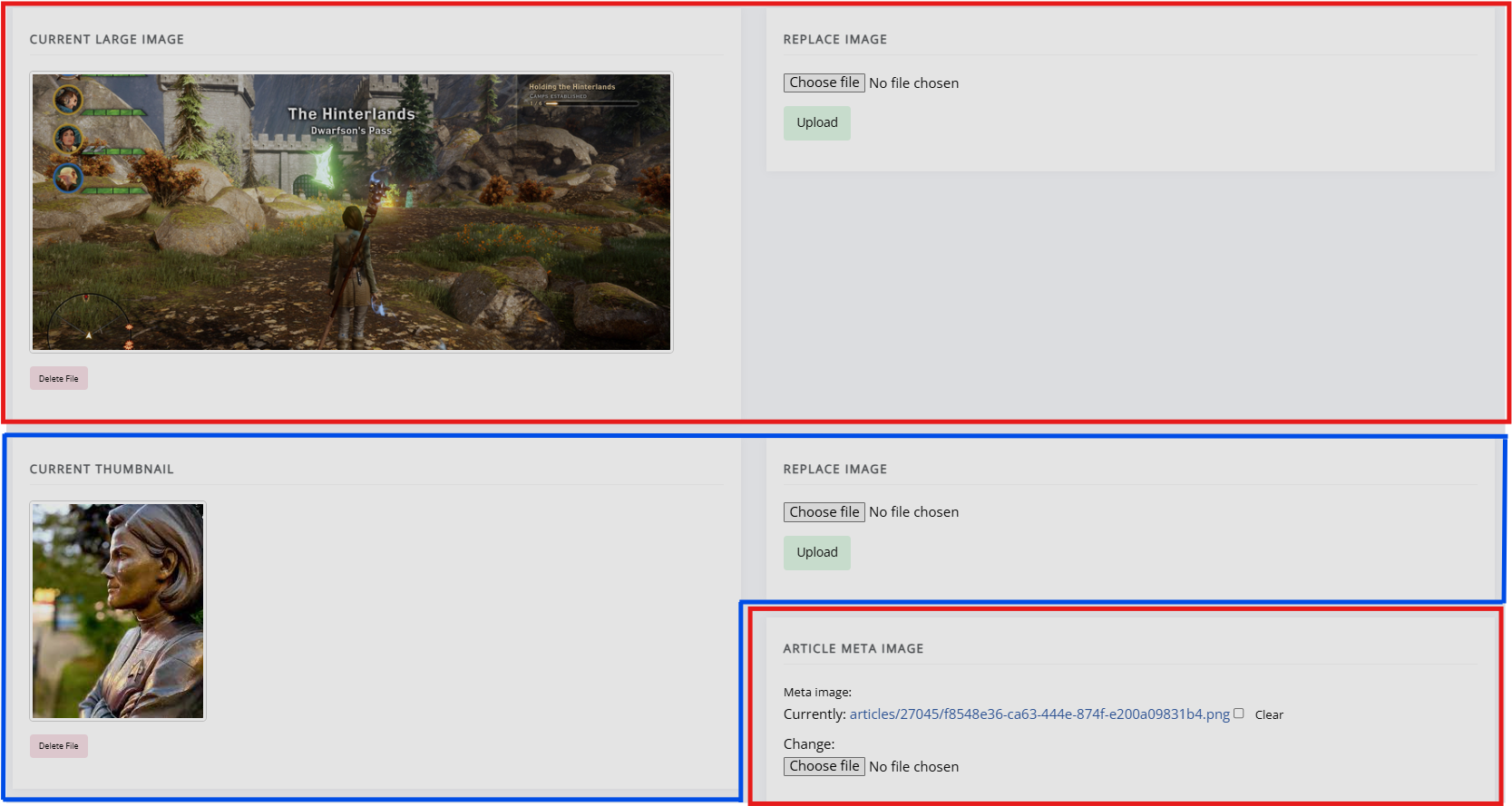
The large image and thumbnail will display a preview and can be removed by clicking Delete. The meta image will not display a preview and can be removed by checking the Clear box and then clicking Upload.
See also: Image guidelines.