Carousel configuration
Carousel configuration pageThe homepage carousel is a rotating banner that can display selected content from your journal, such as articles, news items, issues, or collections. These content types can be mixed within the same carousel.
You can configure the carousel from the Manager dashboard:
- On the Manager dashboard, select Homepage.
- If the carousel is not yet enabled, click Add next to Carousel.
- If the carousel is already active, click Configure.
To remove the carousel from your homepage, click the Delete icon next to it.
Customising carousel content
Customising carousel content sectionThe carousel can display three types of content articles, news items, and issues and collections. All of these can appear together in the same carousel. The carousel does not enforce a fixed display order. It cycles through the selected items continuously. For usability reasons, it is best to limit the total number of items to 5-6, and avoid more than 10.
Images used in the carousel
Images used in the carousel sectionThe image shown in the carousel comes from the large image associated with the item, these are set as part of creating a news item, creating an issue or collection, or publishing an article.
If an item does not have a large image:
- Janeway will use the default large image configured in Images.
- If no default image is configured, the system will fall back to the server default image.
For best results, ensure items included in the carousel have suitable large images set. See Image guidelines for recommendations.
Exclude option
Exclude option sectionThe Exclude tickbox changes how the selection lists behave.
-
Disabled (default):
The selected items are included in the carousel. -
Enabled:
The selected items are excluded from the carousel.
Selecting items for the carousel
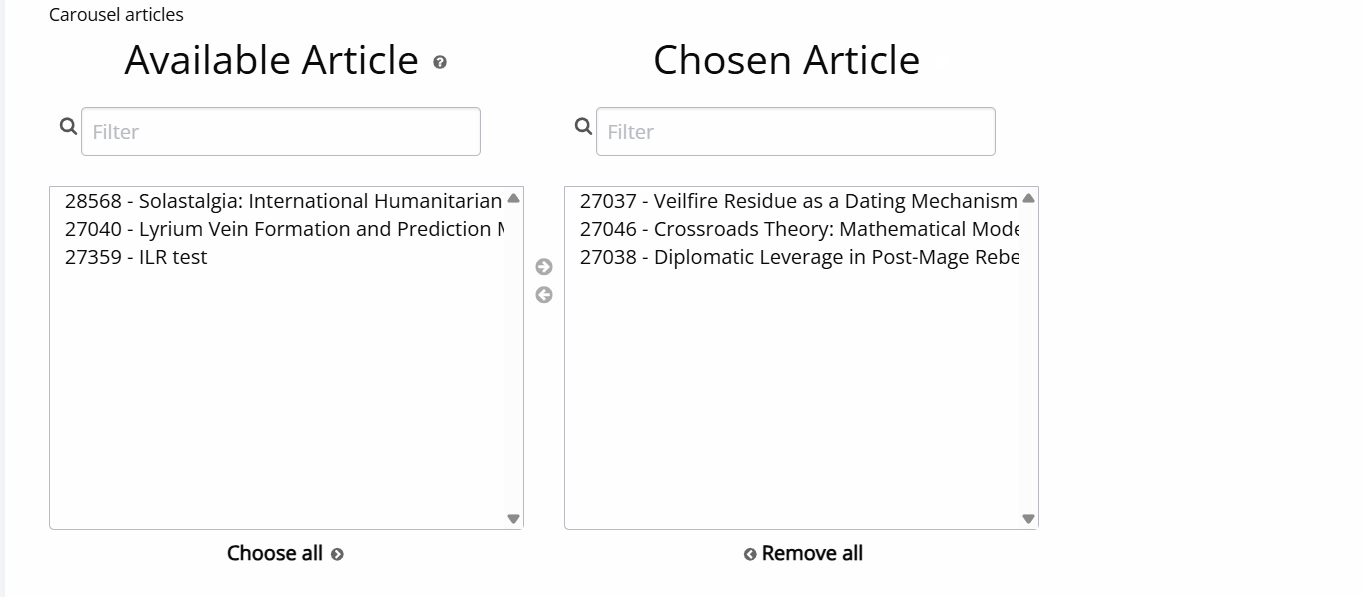
Selecting items for the carousel sectionWhen selecting specific content for the carousel, Janeway uses a two-column interface:
- Available (left column)
- Chosen (right column)
To include an item in the carousel, select it in Available and click the right-facing arrow to move it to Chosen.
To remove an item, select it in Chosen and click the left-facing arrow.
Buttons below each column allow you to Select all or Remove all items.
Articles
Articles sectionArticles can be added automatically or selected manually.
To show recent articles automatically, enable Latest articles and set the Maximum number of articles to display. For example, if Latest articles is enabled and the maximum is 4, the carousel will display the four most recently published articles.
If you prefer to curate the carousel manually, move articles from Available to Chosen using the selection interface.
News
News sectionEnable Latest news to automatically display recent announcements, and set the Maximum number of items to include Alternatively, you can manually select specific news items using the selector interface described above.
Issues and collections
Issues and collections sectionIssues and collections behave the same as articles and news in the carousel. However, instead of the option to show multiple recent issues, is has the option to enable Current issue to display the issue marked as current.
Tip
If changes are not appearing on the homepage, trying clearing the cache.
Image contrast and carousel overlays
Image contrast and carousel overlays sectionIn the carousel, Janeway will display a low-opacity grey overlay on top of the image. This is used to improve the contrast between the image and the text displayed over it (such as the article or news title).
As a result, the image may appear darker than the original file and/or less vivid than expected. This does not necessarily mean there is a problem with the uploaded image, but may cause issues if you have a strict housestyle.
Removing the overlay
Removing the overlay sectionThe overlay can be changed or removed through CSS styling (see Custom styling ). However, this should only be done with care.
Warning
Before removing or reducing the overlay, make sure the text remains clearly readable against the image.
By default, carousel text is white, so removing the overlay may make text difficult to read if the image is pale, bright, or low-contrast.
If you are using custom text colours or disable the overlay, make sure there is still sufficient contrast between the text and the background image.
Good practice
Good practice section- Keep the overlay if your carousel images vary in brightness.
- Test carousel slides with both light and dark images.
- Avoid using very pale or very busy images behind text unless you have checked accessibility impact.
- If editing the CSS, review the carousel on mobile as well as desktop.