Editor guide to review
Editor guide to review pageThe review workflow may take various shapes depending on the type of review a journal uses. This workflow allows you to assign articles to reviewers, gather the reviews and communicate a decision about the article to the author.
This guide will cover the default review workflow, which applies to single anonymous, double anonymous, and most of the open and triple anonymous workflows. There are additional pages with information on using triple anonymous peer review and sharing reviews and author responses. Additionally, there is information available on configuring the peer review process and setting up review forms.
Setting up a review
Setting up a review sectionThe first step to start peer review is to select the file(s) to review by clicking on Add files. You will be able to either select a file or upload a new file. If you are using anonymous peer review, you may need to check the uploaded manuscript for identifying information and reupload a new file. All reviewers for a given review round can access the files selected.
If this is not the first round of review, you will need to open a new review round by clicking on ⊕ New review round
After the appropriate files have been selected, you can add the reviewers. You do this by clicking Add new reviewer.
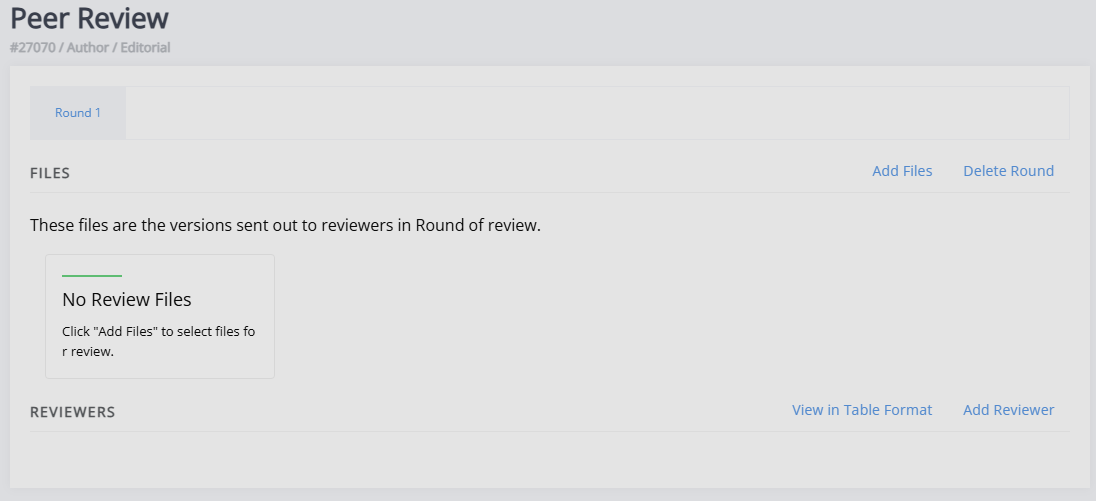
Now, you can either select a reviewer from the list presented to you, select an existing user who does not yet have the reviewer role (Enrol existing user) or invite a new reviewer who does not yet have an account (Add new reviewer).
Tip
It is recommended to turn on one-click review. This allows reviewers to complete a review using a unique link without needing to register an account or log in.
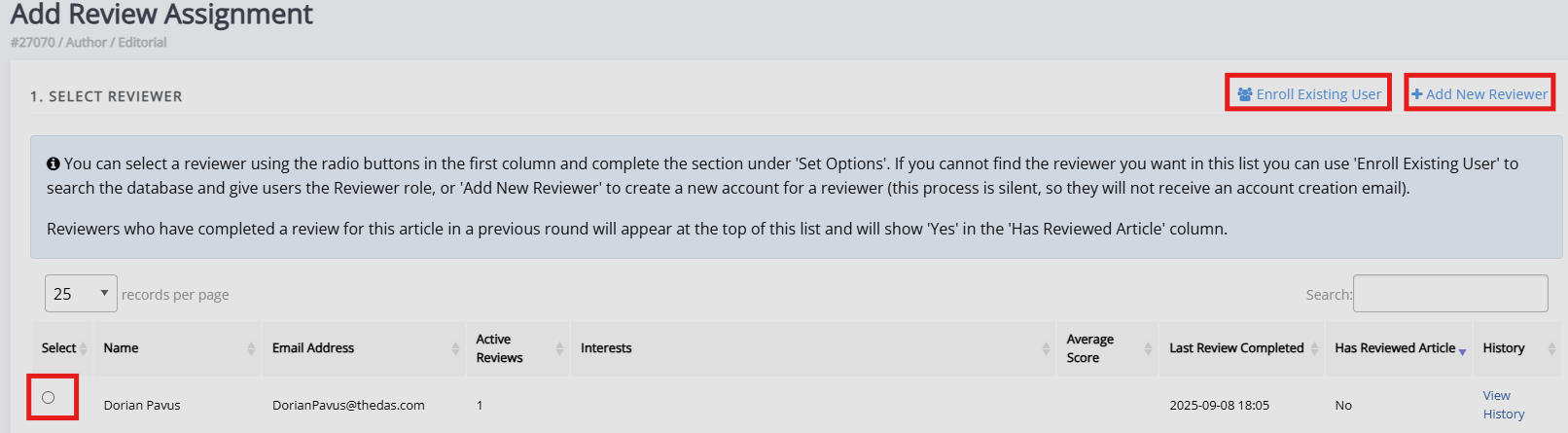
When assigning the reviewer, you can also select the review form, review type (open, single or double anonymous) and set the due date. You can set defaults for these in review settings to minimise the customisation needed here. Once you have selected a reviewer and are happy with the review settings, click Add reviewer at the bottom of the page to confirm. You will then be shown the outgoing email on the next page, which you can edit or select the option to skip sending this email.
Once the reviewer has been assigned, they can access the system to accept or decline the review, and (if accepted) do the review.
You can see how this appears to reviewers and what the review process looks like for them in the reviewer guide.
Managing a review
Managing a review sectionOnce a review has been requested, it will be listed on the review page. The initial stage of any review is "Awaiting acknowledgement" - this means the review has not yet responded to the review invitation.
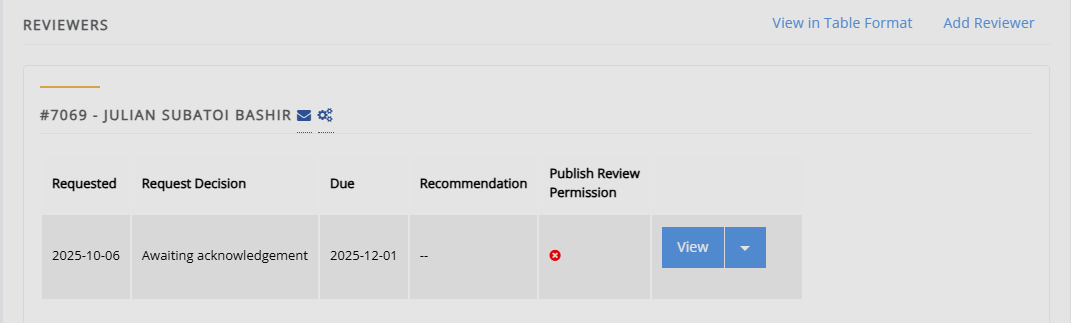
Once a review has been requested, you can do one of the following:
- See the review by clicking on the View button (though no meaningful information will be available until the review is completed).
Or by clicking on the ⏷ dropdown icon, the following options will also become available:
- You can click Reset to return the review status to “Awaiting acknowledgement” if the reviewer mistakenly withdraws or declines the review.
- Edit the review settings (due date, review type, review form).
- Rate the reviewer. The reviewers' average ratings will be visible when selecting them for review.
- Withdraw the review.
- Delete the review.
- If you have admin permissions, you can edit the review details in Admin.
Completing a round
Completing a round sectionViewing and editing reviews
Viewing and editing reviews sectionOnce a reviewer has completed their review, you can view it using the View button. You can see the reviewer's feedback, comments to you as the editor, and you will have the option to edit the review if needed. When an author reads the review, they will see only your edited version, not the reviewer's original version. You can reset the feedback to its original, unedited version at any time.
Note
Janeway will retain a copy of the original review and this will remain visible to editors when opening the review.
Sharing reviews with authors
Sharing reviews with authors sectionOnce a review is complete, editors can share it with the author(s). They are unavailable to authors by default. If the review includes a file, you will have the option to make it available to the author as well.
You can see what the author sees in the review section of the author guide.
There are two ways reviews can be made available:
-
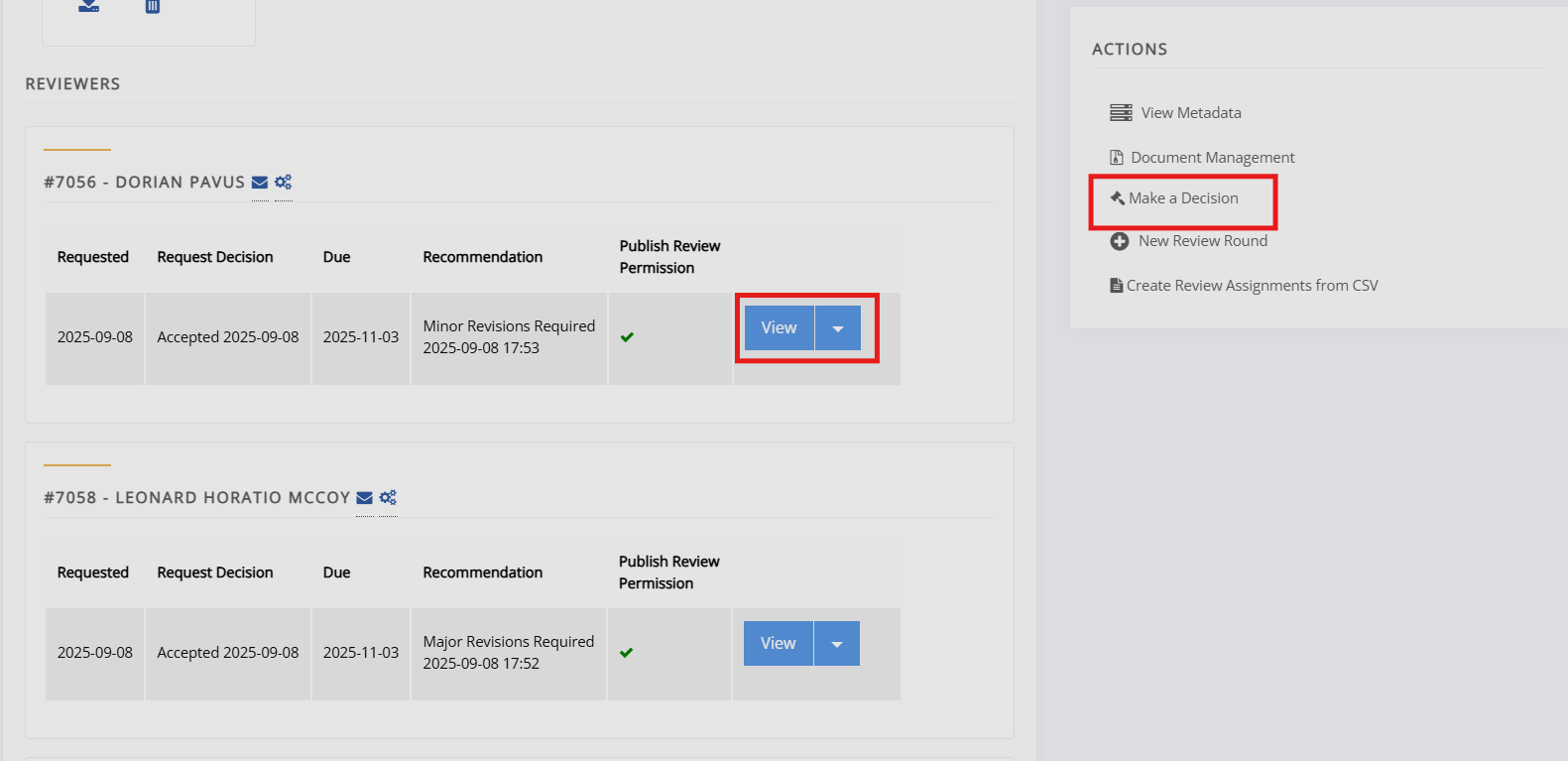
Individually, by clicking on View, then toggling the review visibility switch and then pressing Save.
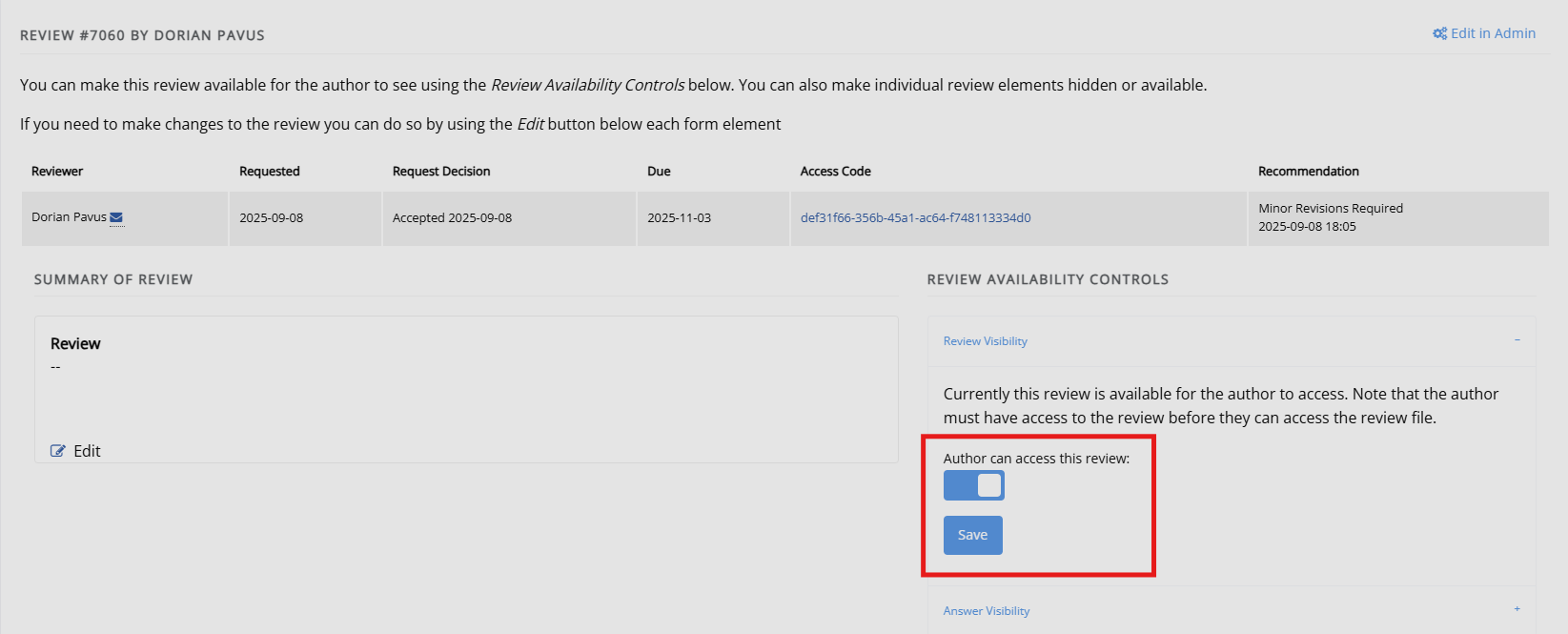
-
'In bulk' when making a decision, after clicking on Make a decision. First, you will see all completed reviews in a column with a toggle detailing whether the review is visible to the author.
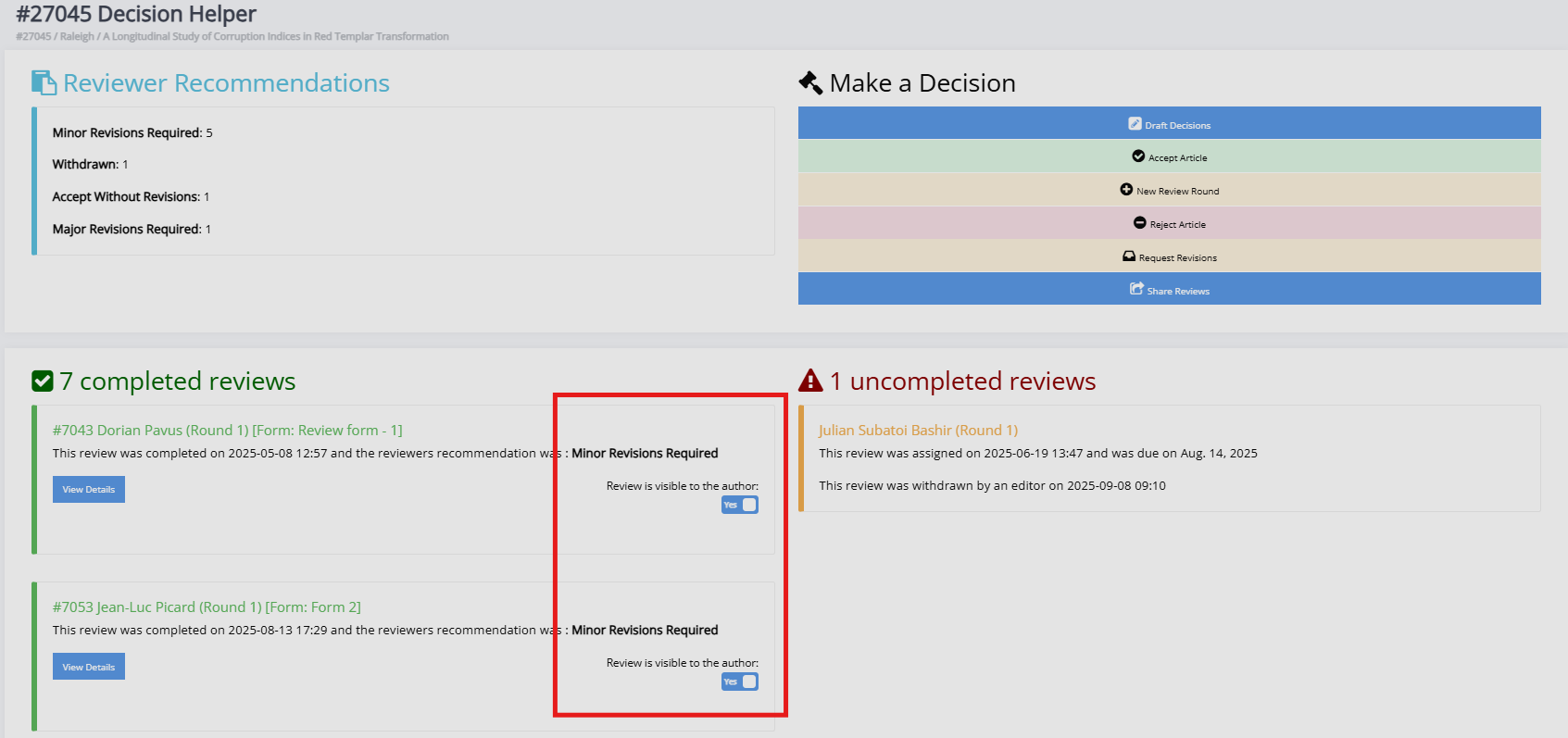
Controlling individual review answers
Controlling individual review answers sectionIn addition to making the overall review available for authors to read, you can control the individual answers to review questions. This option is available on the individual review pages, under Answer visibility.
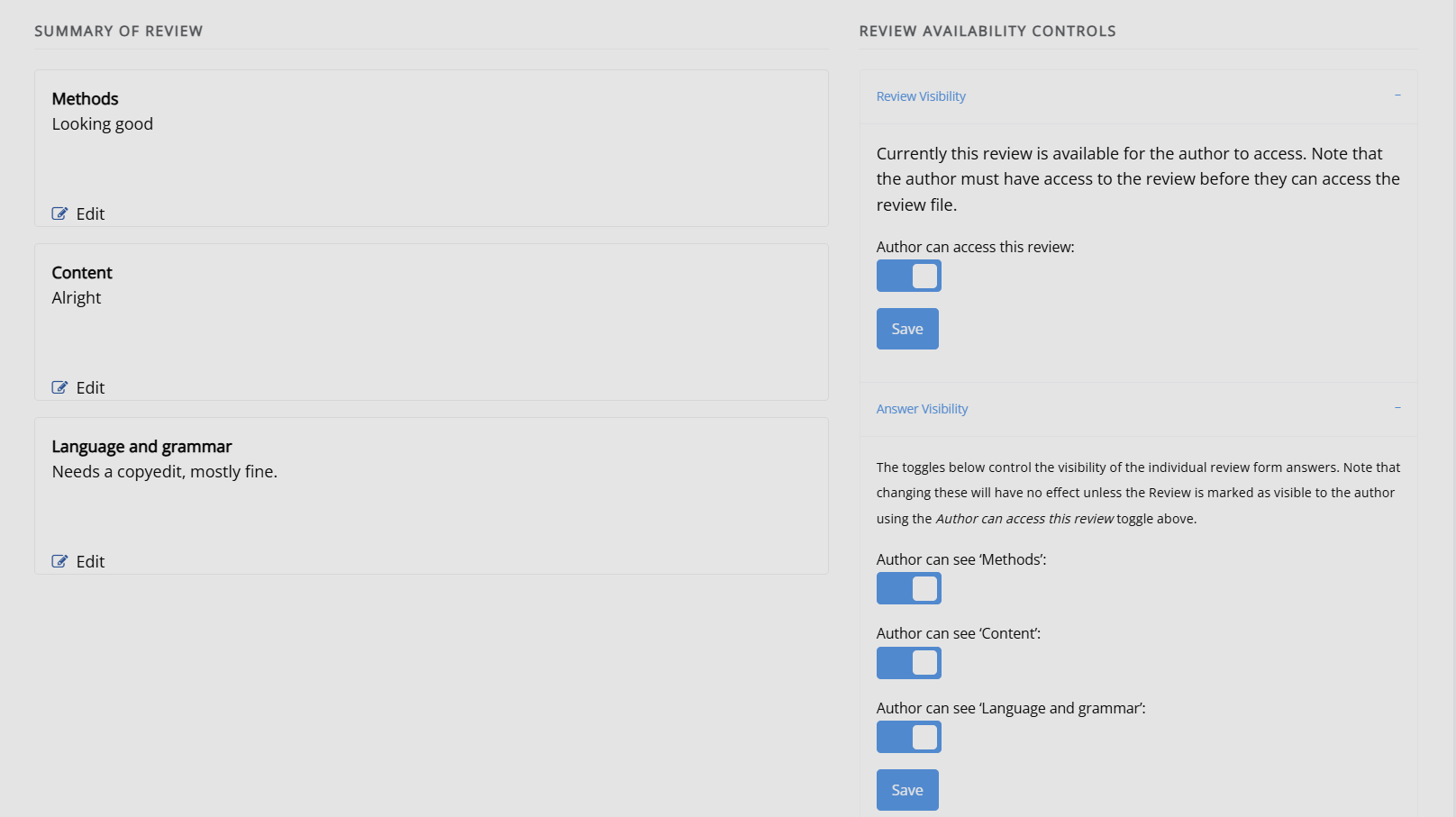
Toggling the sections on or off will determine whether the author can see answers to specific review questions when they look at the review. No answers will be visible until the top toggle, which enables the author to access the review, has been switched on. The default visibility of each review question can be configured through the review forms (see review settings and review forms).
Making a review decision
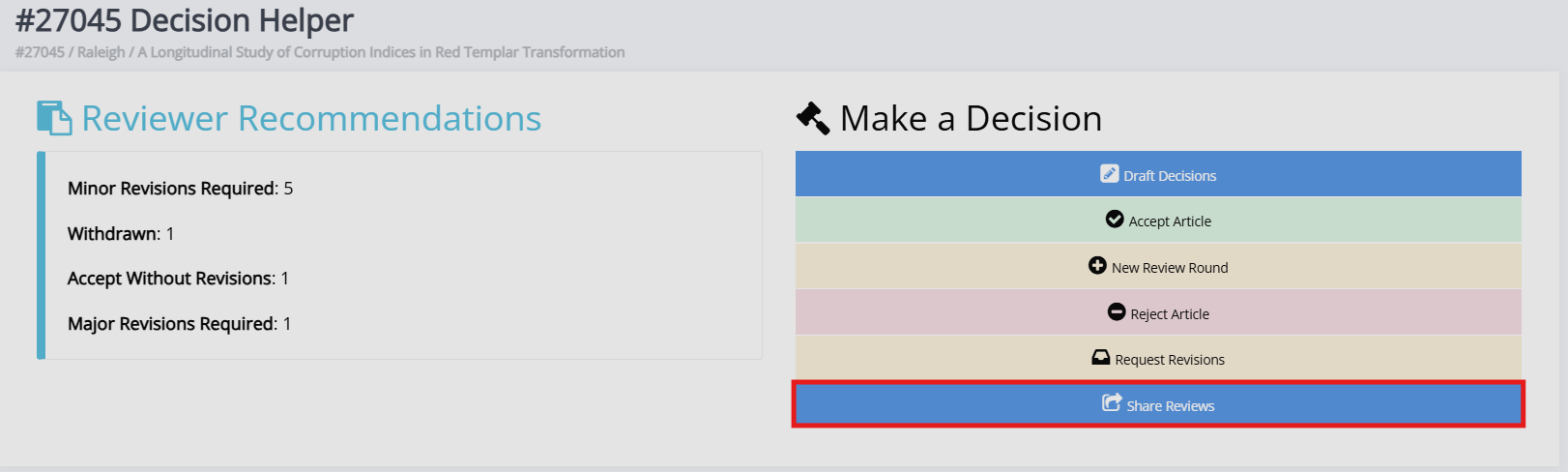
Making a review decision sectionIf you are ready to make a decision after a round of review, you can click on Make a decision to open the Decision helper page. On this page, you will see a summary of reviewer recommendations, their review form answers and a list of uncompleted reviews.
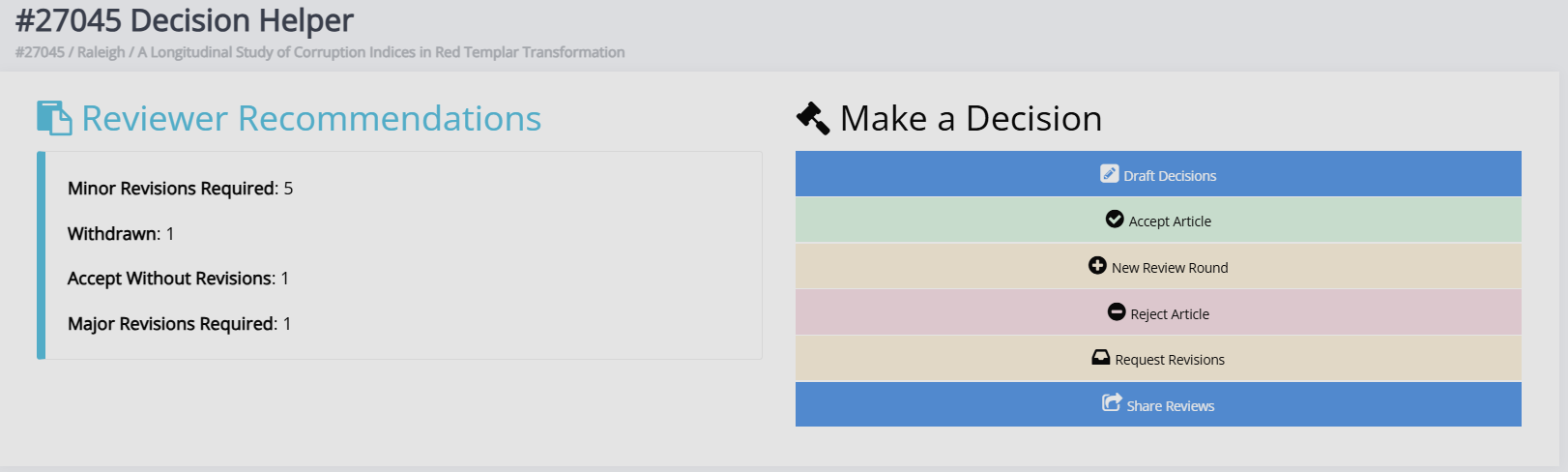
In addition to this, the following buttons are available:
- Accept article
Accepts the article, allows you to email the author and moves the article into the next stage. - New review round
Adds a new review round. Any open review assignments on the current round are withdrawn, and a new round is set up. This process is often done after round 1 and the author has completed revisions. You can still see previous rounds through the tab at the top of the page. - Reject article
Rejects the article, removes it from the workflow and allows you to email the author. - Request revisions
Allows you to request the author revises their paper.
If enabled:
- Draft a decision
Allows section editors to draft one of the above decisions for approval by an editor. - Share peer reviews
Allows an editor to email all of the reviewers who participated in the review of an article and share a link to all of the review reports.
Note
These settings must first be enabled before the options will be displayed, see Review settings.
Request revisions
Request revisions sectionRequesting revisions will allow you to ask the author to make changes to the manuscript. You can request revisions from the Decision helper page by selecting Request revisions.
Tip
Before requesting revisions, make sure you have marked reviews as available to the author. Janeway will warn you if you have not done this for a given review.
Once you have chosen to request revisions, you will be taken to a page where you can set the due date for the review, specify whether these are major revisions, minor revisions, or a conditional accept and provide any further information to the author. On the next screen, you can edit the email that will be sent to the author or skip sending it. All three types of revisions will have their own email template.
Once an author has completed the revisions, you will be notified, and you can find their revised manuscript, cover letter to the editor and cover letter to the reviewers under Revision requests by clicking View.
You can now either accept the article and move it to copyediting or open another round of review.
Sharing reviews amongst reviewers
Sharing reviews amongst reviewers sectionYou can share completed peer reviews among reviewers. This can be set up through the Review settings interface. Once sharing reviews has been set up, there are two ways in which reviews can be shared.
-
After the first round of review.
- Once the first round of review is complete, a new option will be present on the Decision helper screen to mark the reviews as shareable. It will send an email to the reviewers, providing them with a link to access and view the review content.
-
Sharing reviews in the second round and beyond
- Reviews from previous rounds can also be automatically shared with reviewers on the current round. When reviewers access the review interface, they will be given the choice to view anonymous reviews completed by their peers. Editors can modify the message to clarify why reviewers can view the reviews through the review settings.
Deleting a review round
Deleting a review round sectionThis will delete the current review round in its entirety. It will remove the files, assigned reviewers, and any reviews already completed from the current round.
Warning
There is no way to recover a review assignment once deleted. In many cases, it may be better to add a new round, which will close all open review assignments.
Finishing up
Finishing up sectionTo complete the Review stage, you can either:
- Accept the article and move it into the next stage.
- Decline the article and remove it from the publishing workflow.
If using the standard workflow, the stage after Review is Copyediting.