Editor guide to typesetting with Pandoc
Editor guide to typesetting with Pandoc pageThe Pandoc plugin provides an option to generate HTML files from submissions in DOCX or RTF format and set these newly generated HTML files as galleys.
To work on a file, find it under Files for typesetting and click Options. This will present two options:
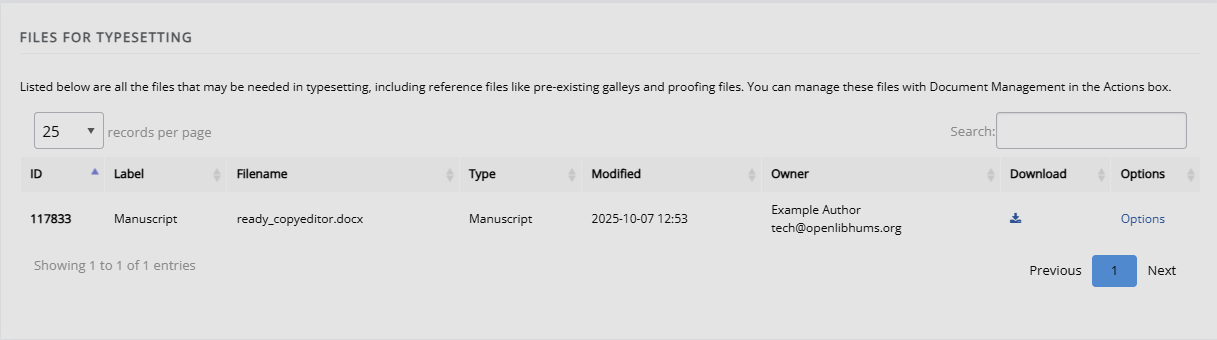
-
Convert
This option makes the file available for download to readers. This feature is useful when you want to make the original manuscript file available. -
Transform to HTML
This option transforms the manuscript file (DOCX or RTF) into an HTML file that displays the article within a web browser.
Once a file has been converted or transformed to HTML, it will be listed under Current galleys. If you have done both, it will display twice.
You can now edit the galley and manage images as outlined in the Editor - typesetting guide.
Editing galleys
Editing galleys sectionIf needed, you can also edit galleys on Janeway. This is only available through a direct link by adding '/file-editor/' to the end of your journal homepage webaddress.
Tip
If your journal is 'examplejournal.com', it is 'examplejournal.com/file-editor'. If your journal link looks like 'example.com/journal', it is 'example.com/journal/file-editor'.
On the file editor, you can find a table with all HTML and XML galleys in your journal - both published and unpublished. HTML galleys can be edited in either a rich-text editor or plain text editor. XML galleys can only be edited in a plain text editor (Pandoc will not generate XML files - so if you are using Pandoc exclusively, you will not see any XML files). To edit a galley file, you can click Edit.
Note
A rich text editor will display content as it will appear on the page (Like Microsoft Word or Google Drive). A plain text editor will display the code, rather than how the content will appear on the page.
You can now edit the galley and save it. Changes made through this editor cannot be undone once you have saved the galley. If you are making changes to an already published article, the changes will be visible to readers once you have saved the galley. Missing images must not be uploaded through this editor, but through the Image Manager within the typesetting interface.