Articles
Articles pageOnce an article is published, you may need to change it — for example, to upload a new galley or correct a metadata error. All published articles can be found on the Published articles page under Back content in the left-hand sidemenu.
Archived and rejected articles can be found under Archived articles. On either page, you can search and then select an article to edit.
Tip
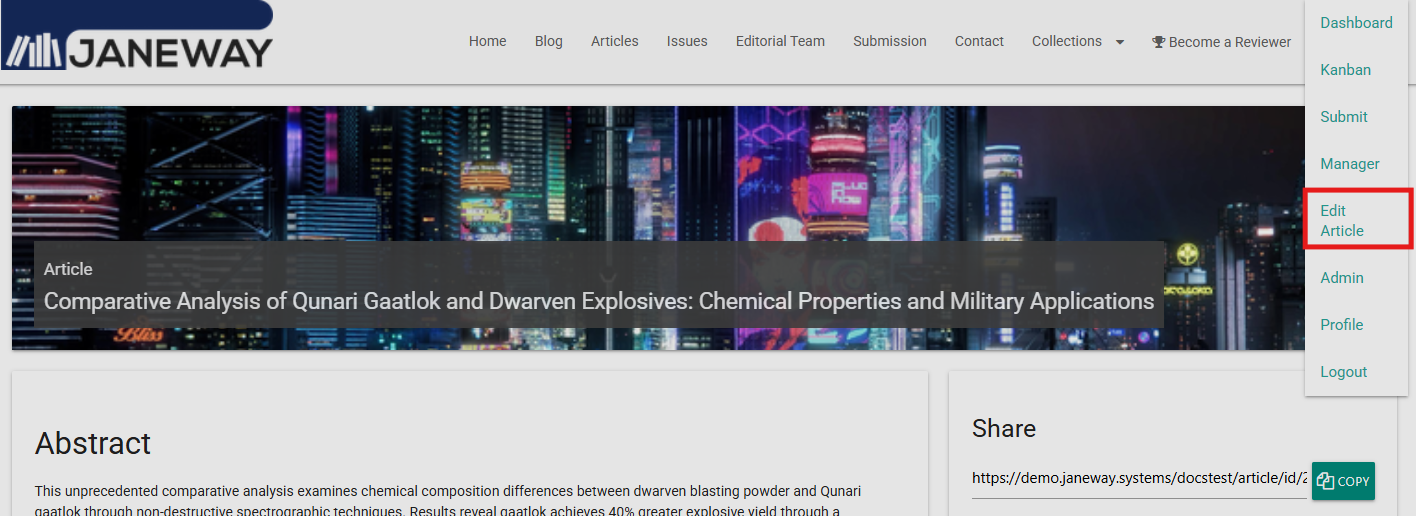
You can also edit a published article by going to its page on the journal front end and selecting Edit article from the account dropdown.
How to use the article archive page
How to use the article archive page sectionFrom the Article archive page, you can:
- Edit metadata
- Edit publication information
- Add or remove images
- Create publisher notes
- Manage identifiers
- Manage galley files
- Manage which issues an article appears in
- Unreject a previously rejected article
Issues
Issues sectionThe issues that an article belongs to are listed at the bottom of the Article archive page. From here you can edit individual issues or go to the issue manager.
Archiving an article
Archiving an article sectionTo archive an article that is in progress:
- Select the article.
- Click Logs, docs and more on the right-hand side of the blue workflow progress bar.
- Click Manage workflow stage.
- Click Archive article.
Restoring archived or rejected articles
Restoring archived or rejected articles sectionTo move an article back into the workflow:
- Select the article.
- Click Logs, docs and more on the right-hand side of the blue workflow progress bar.
- Click Manage workflow stage.
- Click Move to stage to return the article to the stage it was at before it was archived or rejected.
Article rejections can also be undone directly from the Article archive page using the Undo article rejection button.

If the article was previously assigned to an editor, it will move to the Review stage. Otherwise, it will move to the Unassigned stage.
Article display settings
Article display settings sectionThe Article display page has settings for controlling how articles look and how metrics are displayed.
- Disable article images
- Display guest editors
- Suppress how to cite
- View PDF option
- Disable metrics display
- Suppress citation metrics
How to cite is an auto-generated citation based on a custom Open Library of Humanities citation style. You can suppress it for all articles using Suppress how to cite. You can also override it for individual articles by entering a custom citation in the Edit metadata pane for each article.
Note
A previous version of the citation included "p" before page ranges. To restore this, enter a custom value in the Page numbers field in Edit metadata for each article.