Submitting to a Janeway repository
Submitting to a Janeway repository pageTo submit to a repository, you must either already have an account or create one.
Once you have an account and are logged in, there are three places you can submit from:
-
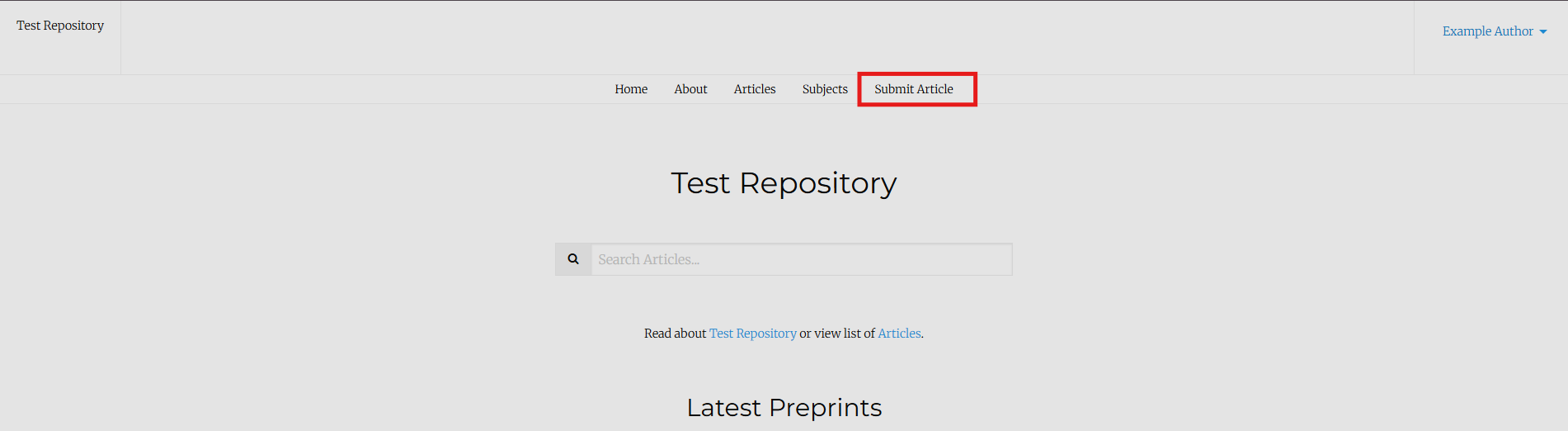
Through the website navbar (if enabled by press):
-
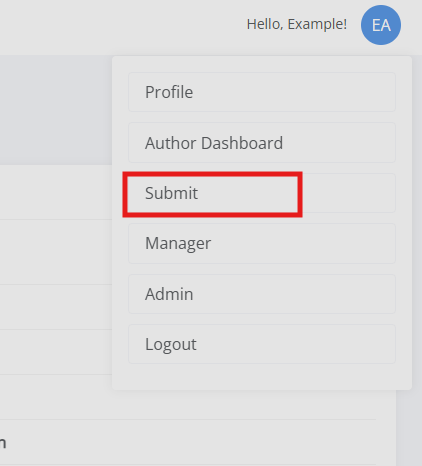
From anywhere within the system (not the public facing pages) by clicking your profile in the top-right corner and selecting Submit:
-
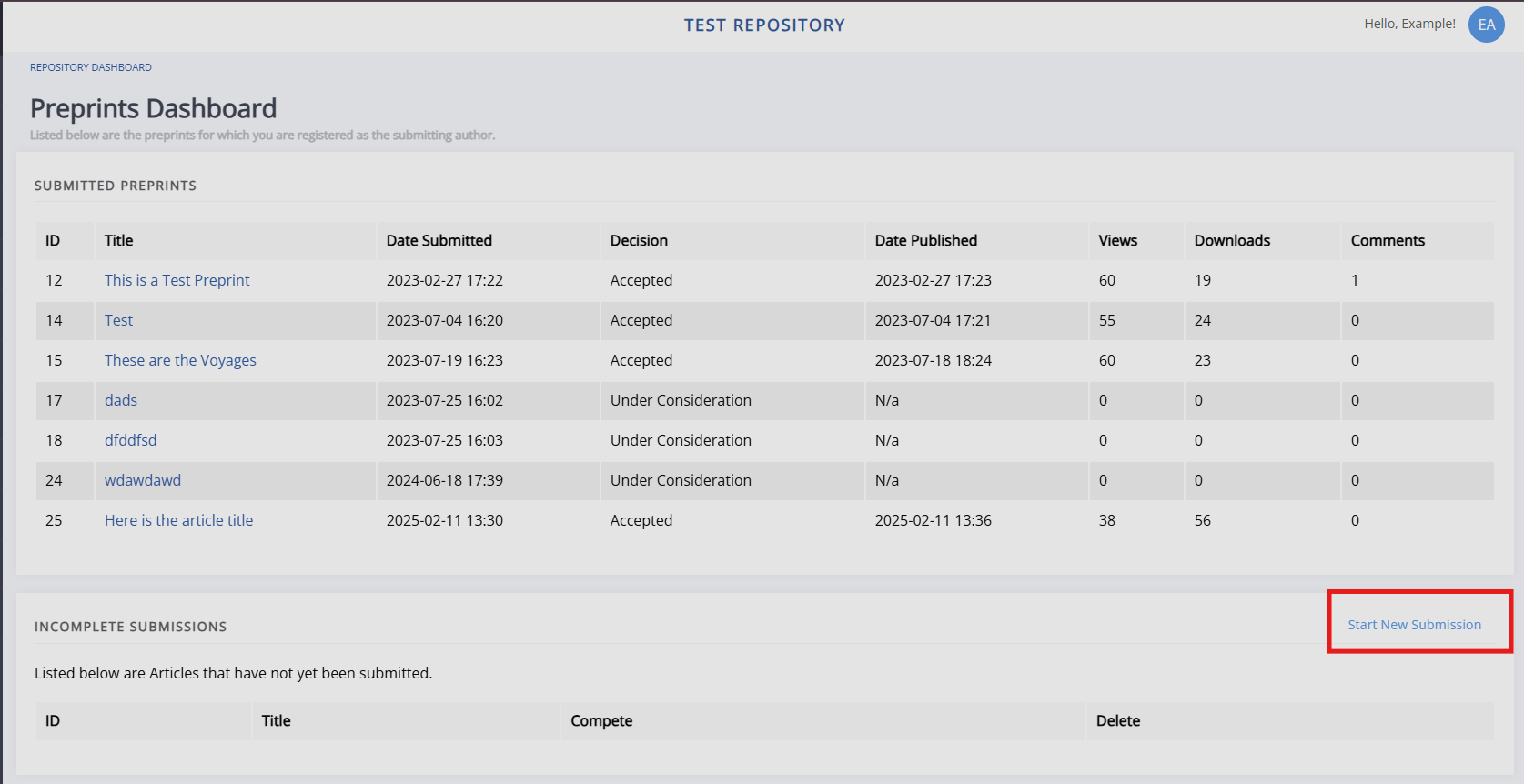
From the Author dashboard, by clicking Start new submission in the Incomplete submissions block:
Once you click Submit, you are guided through a submission process where you are asked to supply information about the submission. This includes:
- The submission agreement and article information. This page usually provides information about any submission or file requirements as well. Fields marked with an asterisk are required to complete the submission.
- Author information.
- Article files and supplementary files.
After this, you can review and confirm that all details are correct before completing the submission. If there are any issues, click Edit metadata or Edit authors to make changes.
Updating a submission
Updating a submission sectionIf you wish to make changes to an existing submission on the repository, select it on the Author dashboard to open up the preprint's dashboard.
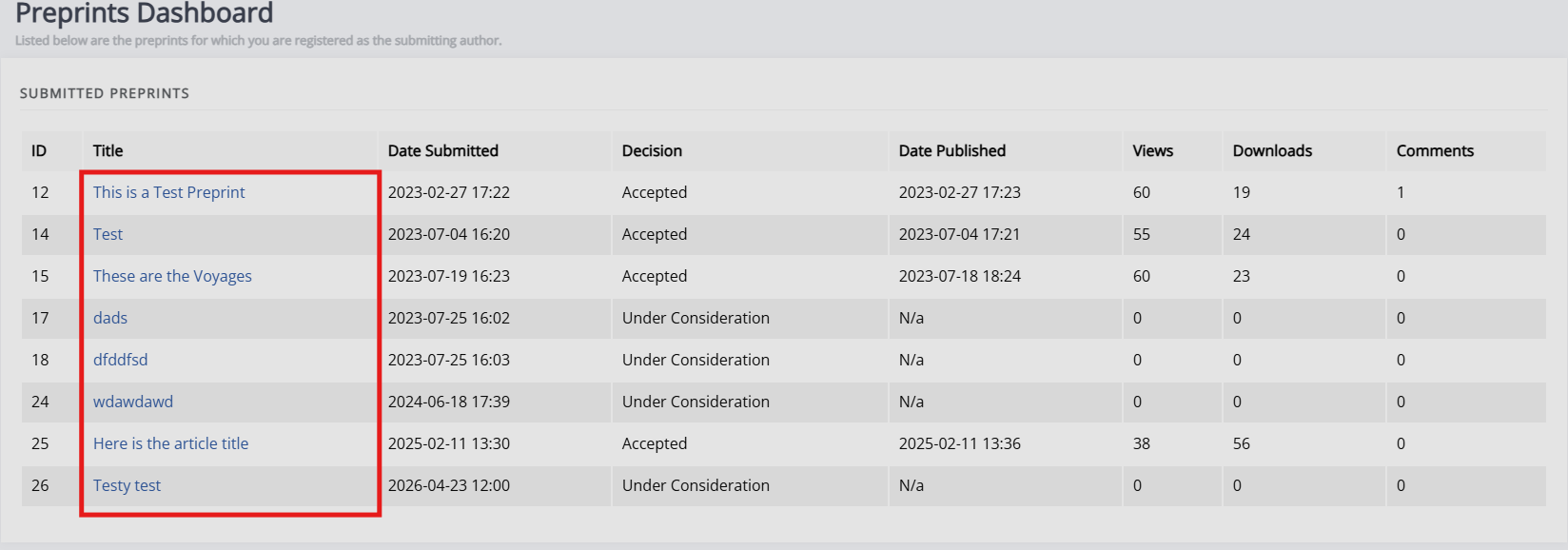
Click Update article to make changes to the preprint.
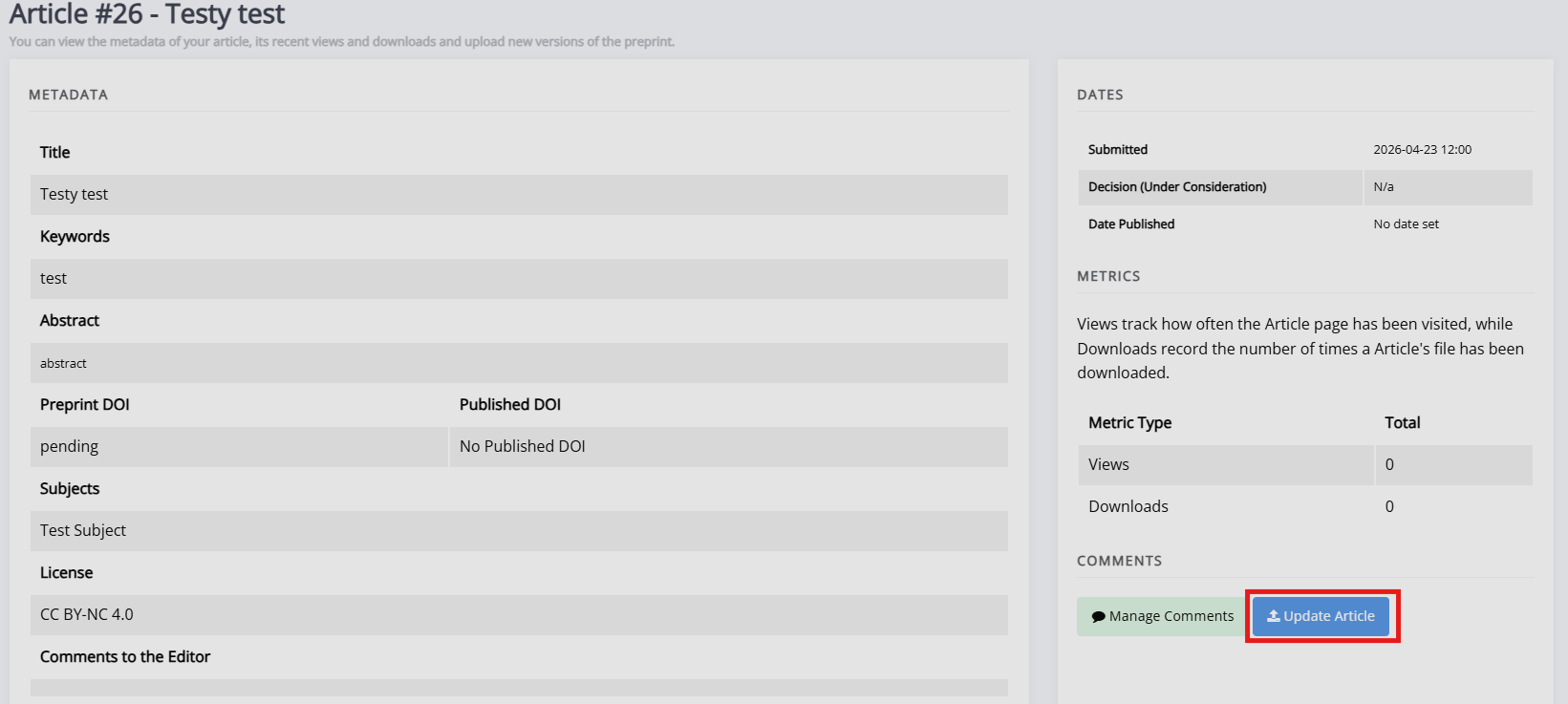
You will be presented with three options:
-
Correction This option lets you upload a small update and will label it "text correction" to indicate the change. You can also update the metadata.
-
New version This option lets you upload a new file and will label it "New version". You can also update the metadata.
-
Metadata correction This allows you to make changes to the metadata, without changing the preprint itself; e.g. adding a missing keyword or correcting a typo.
All three of these will need to be approved by one of the repository managers, changes will only become visible after approval.
You will be able to read the submission requirements by clicking Review submission requirements at the bottom of the page after selecting any of these options.
Note
Clicking Upload new version in the Pending updates section will open the same pop-up with these three options.
You can also download any previously (approved and unapproved) manuscript files in the Files section, by clicking the Download icon.
Supplementary files
Supplementary files sectionYou can manage supplementary files through the Supplementary files section. Clicking Manage supplementary files will open up a page listing the current supplementary files, providing the option to reorder and delete them, as well as provide a new file by providing a link and label for it.