Moderator guide
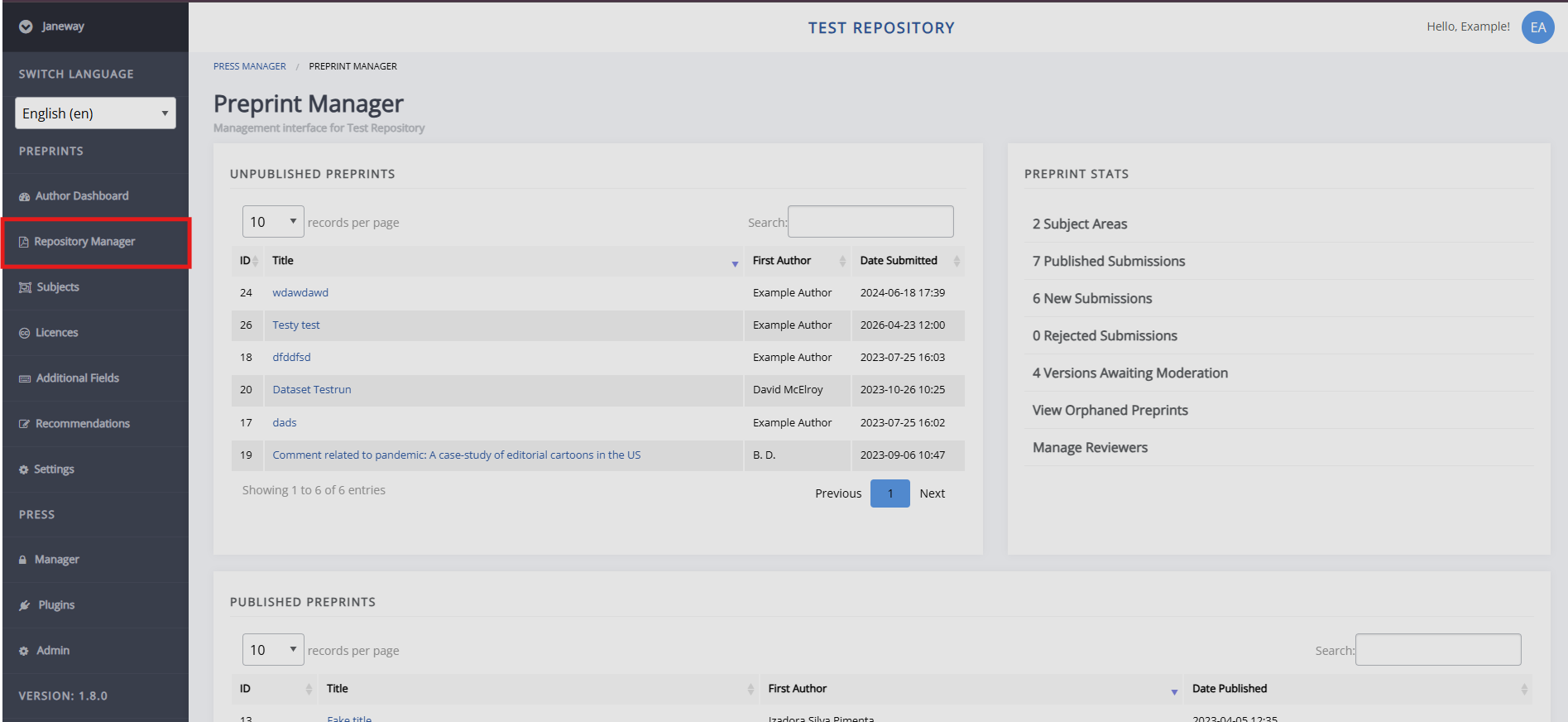
Moderator guide pageAs a moderator you can find (un)published preprints and preprint stats in the Repository manager, accessible from the left navigation menu.
Published preprints
Published preprints sectionClick the title of a preprint to go to the preprint dashboard. Here, you can view the preprint's metadata, (supplementary) files, versions, and the control panel.
Controls for published preprints
Controls for published preprints section- Edit metadata
- Contact the owner
Lets you contact the primary author of the preprint by email. You can include attachments and BCC other recipients. - Log
Opens a log of all emails sent from the system about this preprint. -
Comments
Displays comments made on the published preprint. From here, you can review, publish, and delete them. - Invited review comments
From here, you can invite reviews, see active reviews, and see declined and withdrawn reviews. To send a review invitation, the recipient must first be added as a reviewer — either through Manage reviewers on the Repository Manager page, or by clicking Manage reviewers on the review invitation screen. - Discussion
Lets you view and comment on internal discussion threads, and open new ones. - Edit published date
- Un-published this article
- Send to journal
Lets you send the preprint to a journal on the Janeway press. Select the licence, section (article type), and the stage to send it to.
Unpublished preprints
Unpublished preprints sectionSimilar to published preprints, click the title of an unpublished preprint in the Repository Manager to go to the preprint page. On this page, you can review the (supplementary) files and metadata.
If the preprint is suitable after initial review, click Create a version with this file. After this, you can invite reviewers and take other actions to process the preprint. To reject the preprint, select Reject article in the control panel. An email prompt opens, where you can explain your decision to the authors. When the preprint is ready for publication, click Accept article in the control panel and set a publication date.
Controls for unpublished preprints
Controls for unpublished preprints section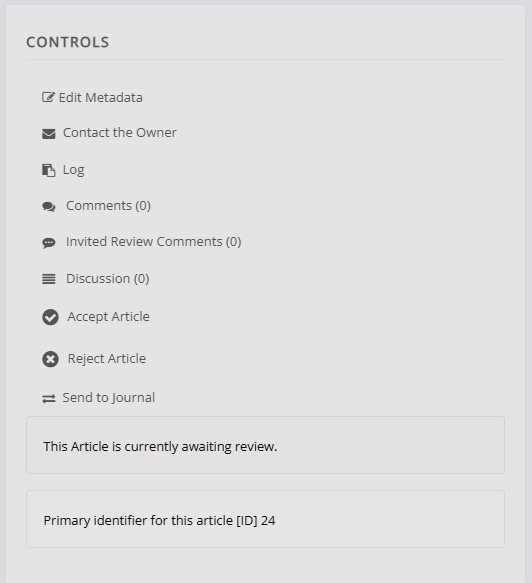
Similar to published preprints, the control panel displays the preprint's status and primary identifier, and presents various options. These are the same as those for published preprints, except that Edit published date and Unpublish this article are replaced with Accept article and Reject article.
Moderating new versions
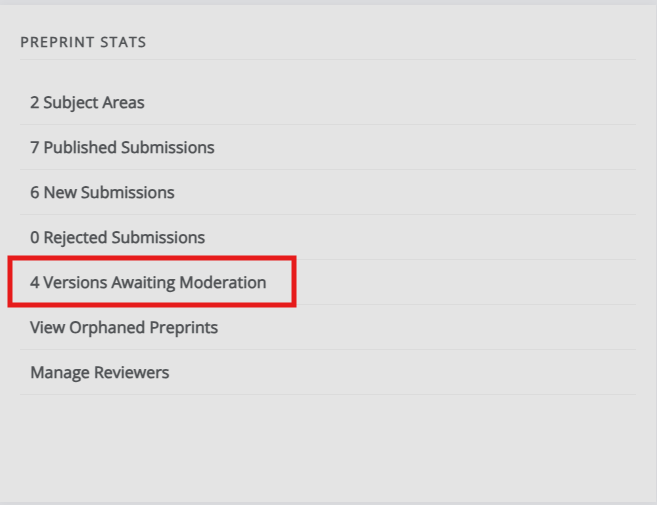
Moderating new versions sectionOn the Repository manager, in the Stats block, click Versions awaiting moderation.
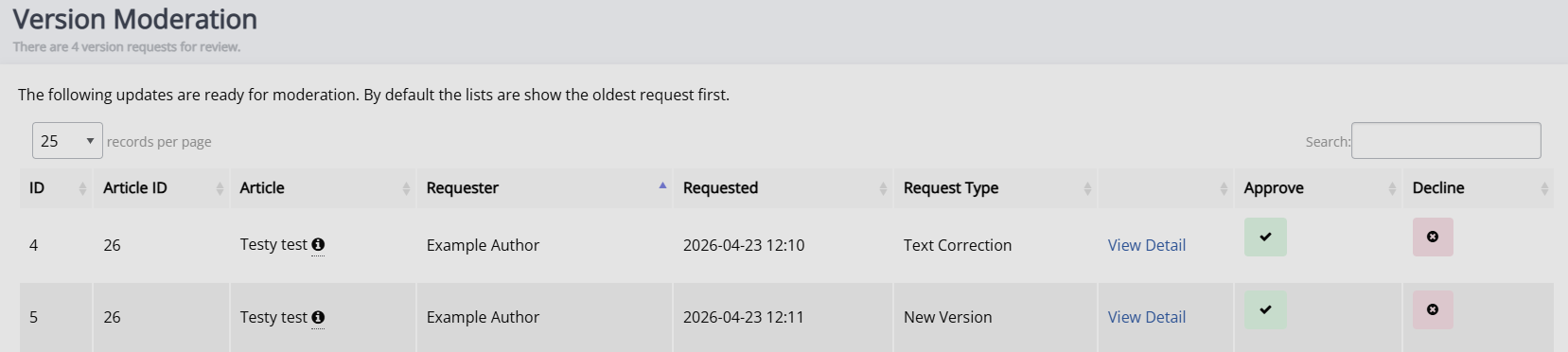
This displays a list of all versions awaiting moderation and their request type. Click View detail to review the version. Then click Accept or Decline to record your decision.