Import, export, update
Import, export, update pageThe Import / Export / Update tool lets you perform some batch actions in Janeway. You can import and export article metadata and files, and you can update some fields of existing articles.
Importing
Importing sectionWith this tool, you can create new articles in Janeway and load them directly into the desired workflow stage (peer review, copyediting, typesetting, or prepublication).
- Download a copy of the metadata template and open it up to edit it. You can use most spreadsheet applications, but make sure you will be able to save it as a CSV with UTF-8 character encoding.[^1]
- Enter the metadata, one article per row. See the Metadata field reference and the sample import for pointers. For multi-author articles, insert a new row for each author, and only fill in the author fields on extra rows.
- Save the file with a name of your choosing.
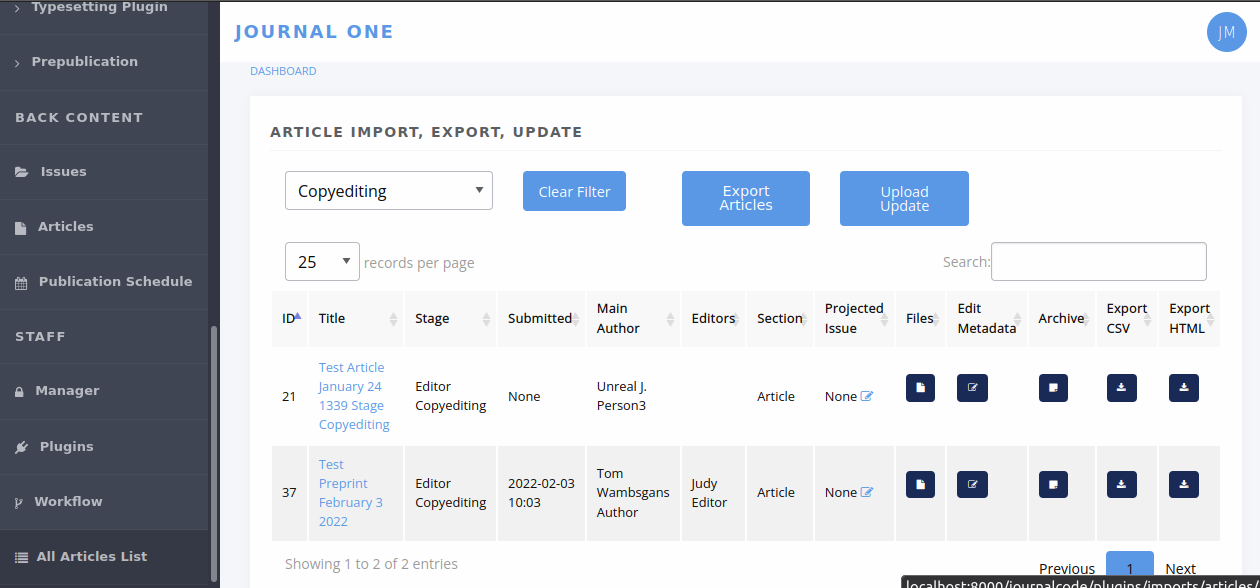
- From the journal's dashboard, navigate to All articles under Staff in the lower left. You need to have staff access to view this page. (The tool also appears as Article import, export, update in the Imports plugin start page.)
- Select Upload update and upload your file. (It says update, but this is how you import new things too.)
- A table will load in your browser showing you the data, before you import it. If everything looks good, select Import.
Note
If you are importing multi-author articles, note that authors each go on their own row, but article metadata only goes on the main author row. It is not duplicated on multiple rows.
Tip
Are you importing articles that have no authors? Leave all of these fields blank:
- Author salutation
- Author given name
- Author middle name
- Author surname
- Author suffix
- Author institution
- Author department
- Author biography
- Author email
- Author ORCID
- Author is corporate (Y/N)
Exporting
Exporting sectionYou can export a CSV containing metadata for all the articles in a given workflow stage. It will also download selected files from that stage.
- From the journal's dashboard, navigate to All articles under Staff in the lower left. You need to have staff access to view this page.
- Use the Filter by stage drop-down menu to choose a set of articles you want to export.
- If you want to download associated files, use the Files column to add files for each article.
- Select Export all or Export filtered. A ZIP file will be downloaded containing the metadata in
article-data.csvand the article files in subfolders numbered by article ID.
Updating
Updating sectionYou can update metadata for batches of articles in Janeway, so you don't have to click through each individual article to make the change.
- To update one field, you have to provide data for all the fields, or at least most of them, because the tool interprets empty fields literally, and will save empty fields (potentially overwriting older data). So it is recommended to first export the set of articles, and use that as the basis for changes. See Exporting.
Warning
The tool will let you overwrite old data if you leave fields blank, so make sure you start any update project by running an export.
- Extract the zip file you exported and open the CSV in your spreadsheet software of choice (but be careful with character encoding).
- Edit the metadata as desired. You an rearrange the columns but the column names have to stay exactly the same. See the sample update, which shows changes made to the data in sample import. See also the Metadata field reference for details on each field.
- Save the CSV file with a name of your choosing.
- On the All articles page, select Upload update and upload your CSV file.
- A table will load in your browser showing you the data you uploaded, so you can look it over before importing it. If everything looks good, select Import.
Metadata field reference
Metadata field reference sectionThe table below shows you what actions (i.e. import, export, update) you can perform with each field (yes/no). For example, you can't import article IDs, because Janeway assigns them for you to make sure they're unique. But you can (must) use article IDs during the update process, so Janeway can recognize the articles.
Much the same, while you can put something in Stage to send the content to the right part of Janeway on initial import, you can't subsequently update the workflow stage for articles already in the system, because it might break editor or author tasks in progress.
The table also shows which fields you have to provide during imports and updates, regardless of whether you are changing those fields. For example, when you're importing new articles, you have to provide article titles. You also have to provide article titles when you are updating articles, even if you're not updating the titles but something else, like the keywords.
If an article has multiple authors, rows for additional authors after the first only contain author data - no article metadata. See the sample import for an example.
| Field | Notes | Import | Export | Update |
|---|---|---|---|---|
| Janeway ID | controlled and assigned by Janeway | no, will break | yes | yes, required[^2] |
| Article title | incl. subtitle; use <em> for ital | yes, required | yes | yes, required |
| Article abstract | use <em> for italics | yes, optional | yes | yes, optional, saves empty values |
| Keywords | separate keywords with commas | yes, optional | yes | yes, optional, saves empty values |
| Rights | Rights statement (free text) | yes, optional | yes | yes, optional, saves empty values |
| Licence | name of licence | yes, optional | yes | yes, optional, saves empty values |
| Language | name of language or ISO code[^3] | yes, optional | yes | yes, optional, saves empty values |
| Peer reviewed (Y/N) | Y or N | yes, optional | yes | yes, optional, saves empty values |
| Author salutation | useful in templated emails | yes, optional | yes | no, ignored |
| Author given name | a.k.a. first name | yes, optional | yes | yes, optional, saves empty values |
| Author middle name | or middle initial | yes, optional | yes | yes, optional, saves empty values |
| Author surname | a.k.a. last name or family name | yes, optional | yes | yes, optional, saves empty values[^4] |
| Author suffix | e.g: "Jr." or "III" | yes, optional | yes | yes, optional, saves empty values |
| Author email | recommended[^5] | yes, optional | yes | complicated![^6] |
| Author ORCID | starting with "https" or the number | yes, optional | yes | yes, optional, saves empty values |
| Author institution | _ | yes, optional | yes | yes, optional, saves empty values |
| Author department | _ | yes, optional | yes | yes, optional, saves empty values |
| Author biography | _ | yes, optional | yes | yes, optional, saves empty values |
| Author is primary (Y/N) | Y or N[^7] | yes, optional | yes | yes, optional, saves empty values |
| Author is corporate (Y/N) | i.e. if the author is an organization | yes, optional | yes | no, will make duplicates |
| DOI | starting with "10" | yes, optional | yes | yes, optional, ignores empty values |
| DOI (URL form) | starting with "https" | no, ignored | yes | no, ignored |
| Date accepted | YYYY-MM-DD (or any ISO 8601[^8]) | yes, optional | yes | yes, optional, saves empty values |
| Date published | YYYY-MM-DD (or any ISO 8601) | yes, optional | yes | yes, optional, saves empty values |
| Article number | integer (arbitrary / custom) | yes, optional | yes | yes, optional, saves empty values |
| First page | integer | yes, optional | yes | yes, optional, saves empty values |
| Last page | integer | yes, optional | yes | yes, optional, saves empty values |
| Page numbers (custom) | Custom page range such as "x–ix" | yes, optional | yes | yes, optional, saves empty values |
| Competing interests | _ | yes, optional | yes | yes, optional, saves empty values |
| Article section | e.g. "Article", "Review" | yes, optional | yes | yes, optional, ignores empty values |
| Stage | the production workflow stage[^9] | yes, optional | yes | no, ignored[^10] |
| File import identifier | for advanced users[^11] | yes, optional | yes | yes, optional |
| Journal code | must match Janeway | yes, required | yes | yes, required |
| Journal title override | Override for this article[^12] | yes, optional | yes | yes, optional |
| ISSN override | "0000-0000" for new journals[^13] | yes, optional | yes | yes, optional |
| Volume number | "0" if not specified | yes, optional | yes | no, ignored |
| Issue number | "0" if not specified | yes, optional | yes | no, ignored |
| Issue title | e.g. "Winter 2022" | yes, optional | yes | yes, optional, saves empty values |
| Issue pub date | YYYY-MM-DD (or any ISO 8601)[^14] | yes, optional | yes | yes, optional |
| PDF URI | A valid URI (advanced users) | yes, optional | no | yes, optional |
Custom submission fields
Custom submission fields sectionIf your journal has any additional submission fields available, this plugin will also allow you to export and update such fields.
As a result, the CSV returned for such journals will have additional headers and content. If you are creating new articles via this plugin and you want to populate the custom additional field metadata, you will need to add the field name as a header on your spreadsheet.
The header location is irrelevant, as long as the header matches the name of the field in Janeway exactly.
[^1]: The Janeway ID must only be populated when updating a record that already exists in Janeway. These IDs are allocated by the system and can not be set by the user.
[^2]: Using a character encoding other than UTF-8 can cause bugs during imports or updates. See “What is character encoding?” These apps save CSVs with UTF-8 by default: OpenRefine, LibreOffice, Google Sheets, and Apple Numbers. However! If you use Microsoft Excel, keep in mind some versions don't automatically create CSV files with UTF-8 character encoding. This may cause punctuation and special characters to be garbled on import. So, when saving, look for the "CSV (UTF-8)" option in the drop-down box.
[^3]: You can use conventional names like "English" or "Catalan" as well as three-letter language codes like "eng" or "cat". Only one language per article. See ISO 639 on Wikipedia.
[^4]: For author fields, running an update will only update what is called the "frozen author" record for this article--that is, the author's information at the time of article submission (or first import). This information is separate from information tied to that person's Janeway account.
[^5]: Email addresses are highly recommended for correspondence authors, since many parts of the workflow involve sending emails to authors, and these won't work without email addresses.
[^6]: You must include existing email addresses in your CSV when you're trying to update other fields. You can also add or remove author records from an article with this tool. However, you must not use this tool to change an author's email address, because Janeway will think you're trying to add a new author and will create a duplicate account with the new address.
[^7]: "Author is primary" tells Janeway which author is the correspondence author. Only one author can be marked "Y", and the rest must be "N" or blank. If you leave this field blank for all authors, the article won't have a correspondence author.
[^8]: See ISO 8601 on Wikipedia. Examples of accepted date or date-and-time combinations: 2022-01-04, 2022-01-04T10:12, 2022-01-04T10:12:38-05:00.
[^9]: The workflow stage has to match one of these values exactly: Unassigned (for peer review), Editor Copyediting, typesetting_plugin, pre_publication, Published. If the field is left blank, the article will be put in the Unassigned stage.
[^10]: The workflow stage cannot be changed en masse once the articles are imported, since that might break tasks in progress.
[^11]: You can import PDF galleys with this process using the PDF URI field. The URI must use one of the following schemes: http, https or file. (When using file it points a local of the running instance of Janeway, and it does not support netlocs.)
[^12]: The journal title is generally no longer required for imports as long as the title has already been entered into journal settings. Only use the journal override field if an article has a different journal title than the current journal title on Janeway, as in the case of backlist content originally published under a different title.
[^13]: The ISSN override field works in the same way as the journal title override, and it must only be used if you want to display a different ISSN for specific articles in special circumstances.
[^14]: If issue pub date is left blank, Janeway will insert the current day's date in this field.