Navigation
Navigation pageA journal's navigation bar (navbar) is customised through the Content manager.
The navbar is made up of two types of items:
- Fixed navigation elements that you can turn enable/disable.
- Custom navigation items that you create yourself.
Fixed navigation elements include:
- Home
- News
- Articles
- Issues
- Collections
- Editorial team
- Submissions
- Contact
- Start submission
- Become a reviewer
The default nav consists of a selection of enabled fixed navigation elements.
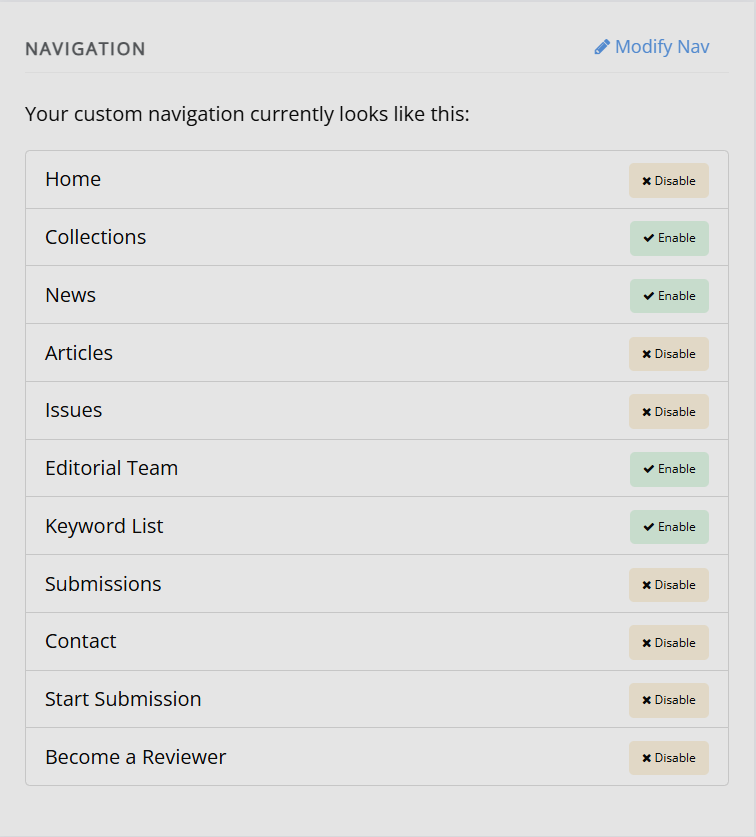
To turn a fixed item on or off, click the Enable or Disable button next to it. The order of the fixed navigation elements cannot be edited directly. To see how to change the order of fixed navigation elements, see the section on Modifying the navbar following this section.
Modifying the navbar
Modifying the navbar sectionTo add new, custom nav items or change the order of fixed nav items, click Modify nav.
This interface has multiple fields:
-
Display name
The page title as it will display in the navigation bar. -
Link
For internal pages hosted on Janeway, compare the URL of your home page with the URL of the page you wish to link to. Copy anything that comes after the main home page URL here. For page options which are provided by Janeway, this will likely be "/page-name" or "journalcode/page-name" (e.g. "/articles" or "journalcode/articles"). For custom pages you have created, this will likely be "/site/page-name" or "journalcode/site/page-name".For external pages, this will be the full URL of the site or page you want to link to. If you want to create a header for a dropdown on your navigation bar that doesn't also appear as a link in that dropdown, leave this field blank.
-
Is external
Tick this box if you want to link to an external web page. -
Sequence
This controls the order in which custom items on your navigation bar appear in relation to one another. -
Has subnavigation
Tick this box if you want to create a drop-down in your navigation bar from this item. -
Top-level nav item
If you want this link to fall under an existing drop-down in your navigation bar, select which one it should fall under.
The built-in page options provided by Janeway cannot be reordered directly. To reorder these pages, use 'Create a new nav item' to create a more customisable link to that page, following the same steps as you would for adding other pages to your nav bar, and disable the Janeway default version."
For footer navigation, see footer navigation. This is only available at press level/
Footer Navigation
Footer Navigation sectionWith some themes, you can put a navigation link in the footer rather than the top navigation bar.
Use For footer to switch the link to the footer. At the press level, only the path theme support this feature so far.
Press managers can also create custom footer links that extend to all journal websites, such as for publisher policies.
To do so, create a navigation item and check Is external, For footer, and Extend to journals.
Styling
Styling sectionThis page displays some general settings for controlling the styling of your journal.
- Full width nav (only used by the Material theme)