Article metadata
Article metadata pageThere are several ways to access and edit an article's metadata in Janeway, depending on whether the article has been published. For more general information on metadata, see: Metadata on Janeway.
Finding article metadata
Finding article metadata sectionUnpublished articles
Unpublished articles sectionFor articles that are in progress (that is, beyond the unassigned stage), you can access metadata in two ways.
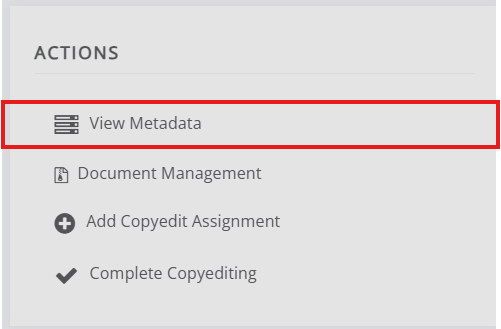
Using the Actions panel: scroll to the bottom-right corner of the article page and select View metadata.
Using the workflow bar:
-
Go to the article page within the workflow.
-
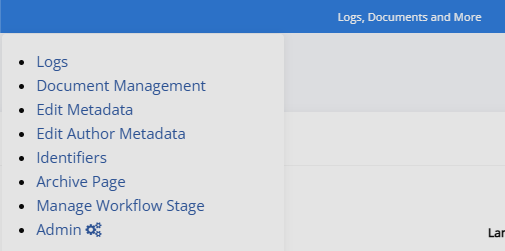
Click Logs, docs and more on the right-hand side of the blue workflow progress bar.
-
Select one of the following:
- Article archive to view the metadata.
- Edit metadata to edit it.
- Edit author metadata to edit the author metadata.
Published articles
Published articles section-
Find the published article on the journal front end.
-
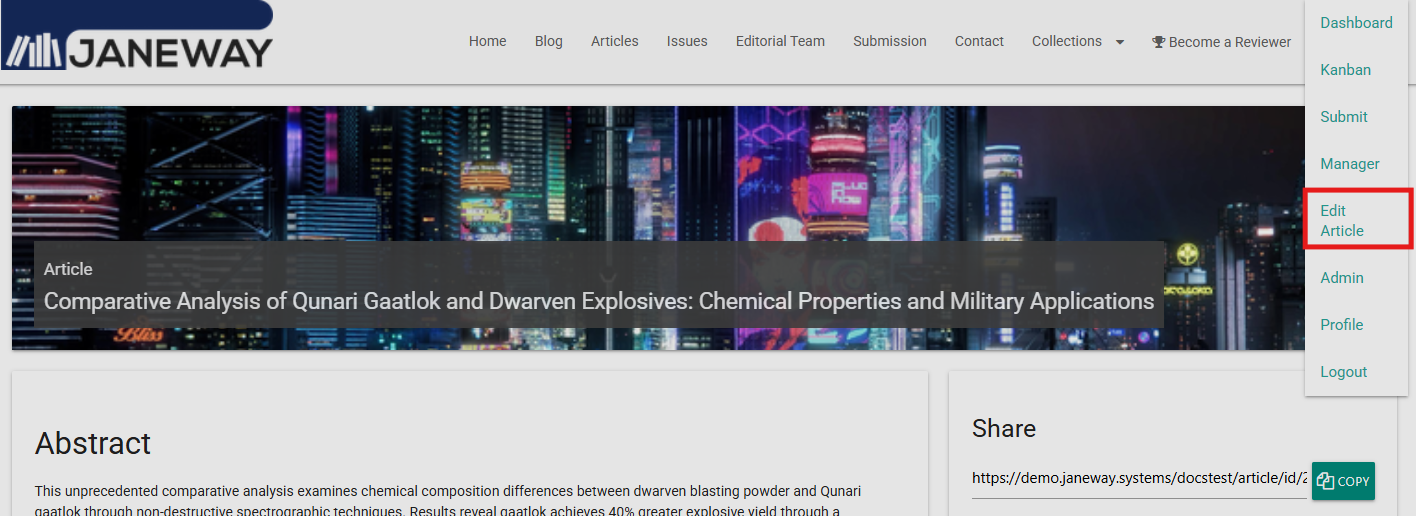
Click the Account dropdown in the top-right corner (make sure you are logged in).
-
Click Edit article. This opens the Article archive page.
-
From the Article archive page, you can:
- Click Edit publication information.
- Click Edit metadata.
- Scroll to the author section and click Edit author metadata.
Alternatively, click Logs, docs and more to access these options from the dropdown menu.
Editing metadata
Editing metadata section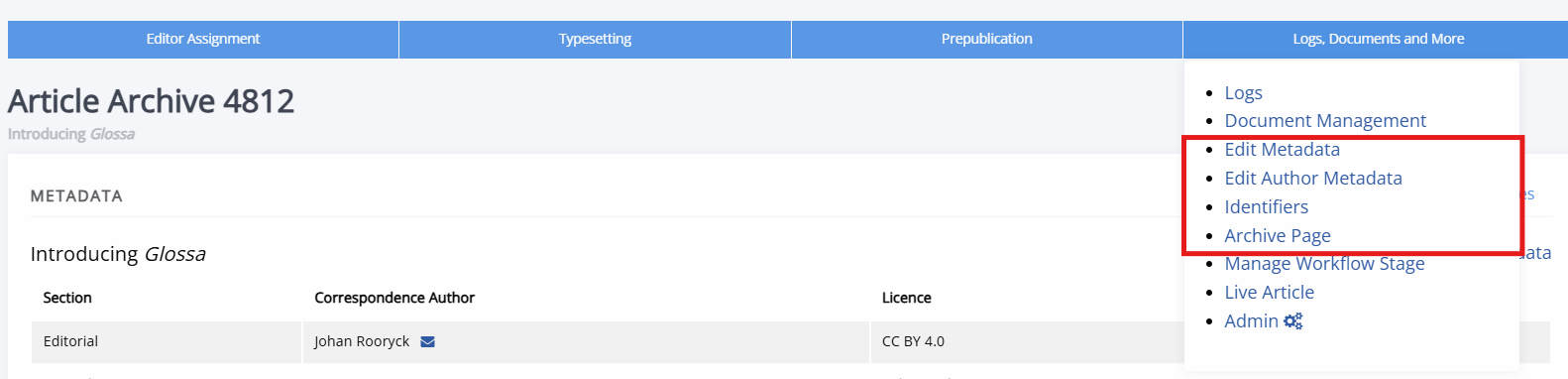
The first block of the Article archive page lists most of the article's metadata. Click Edit.
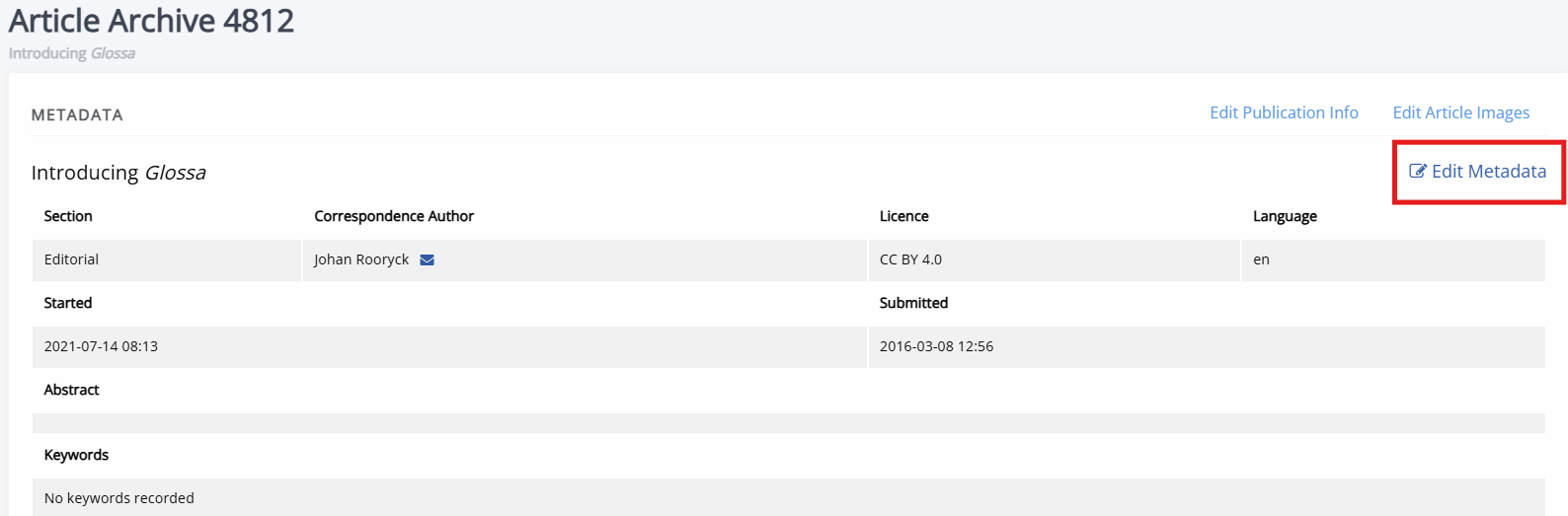
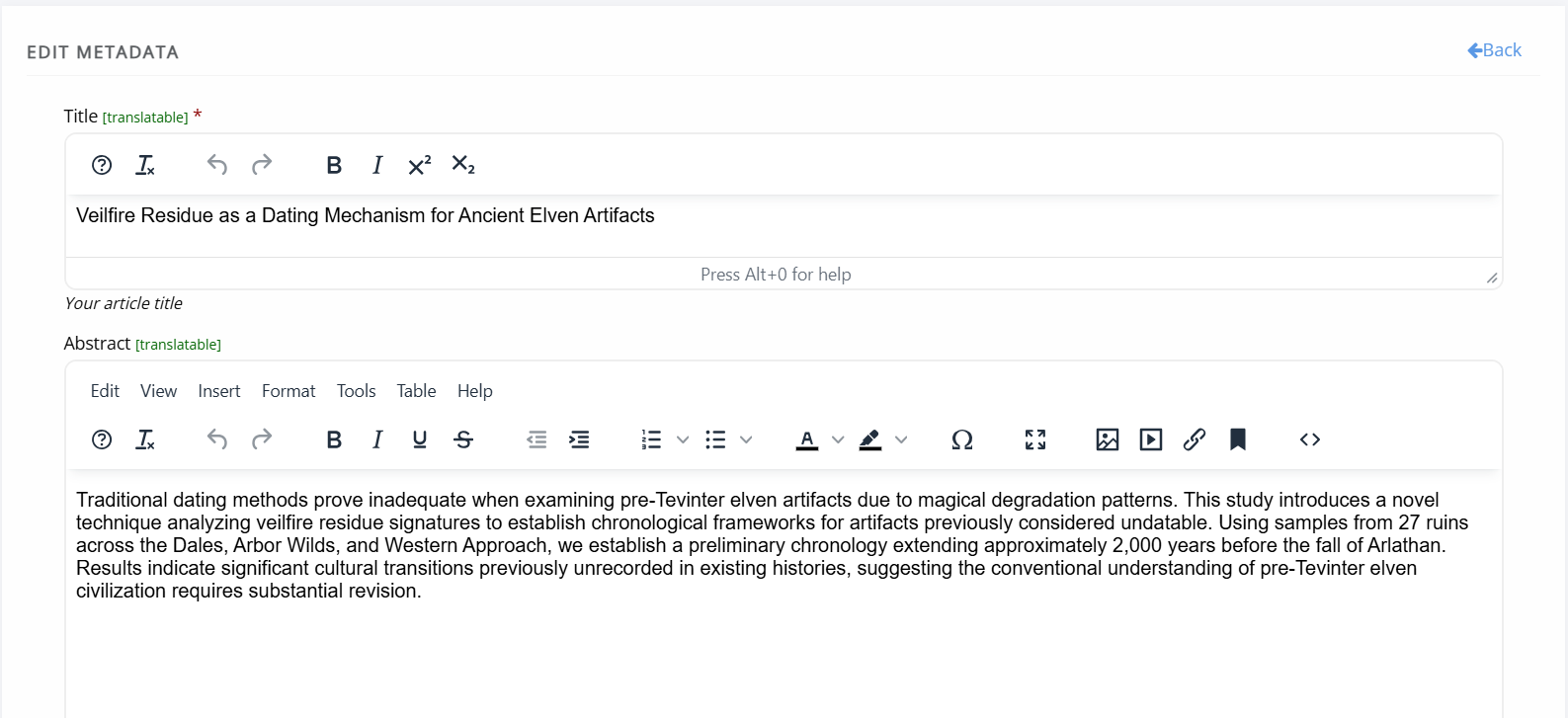
This opens the Edit metadata page, where you can update the article's title, abstract, and other fields.
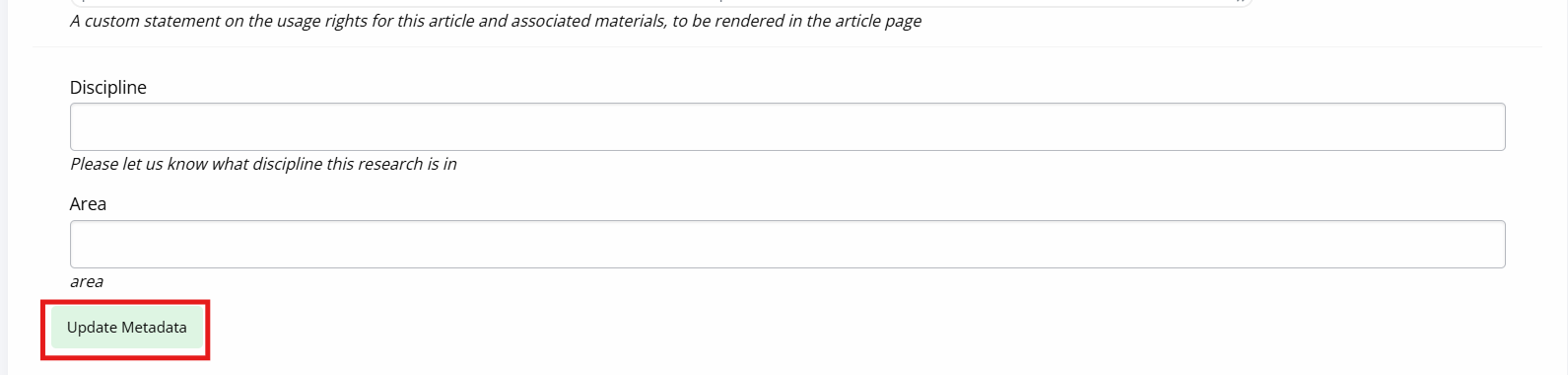
Scroll down and click Update metadata to save your changes.
Below the article metadata block, you can also edit author metadata and funder information.
Identifiers
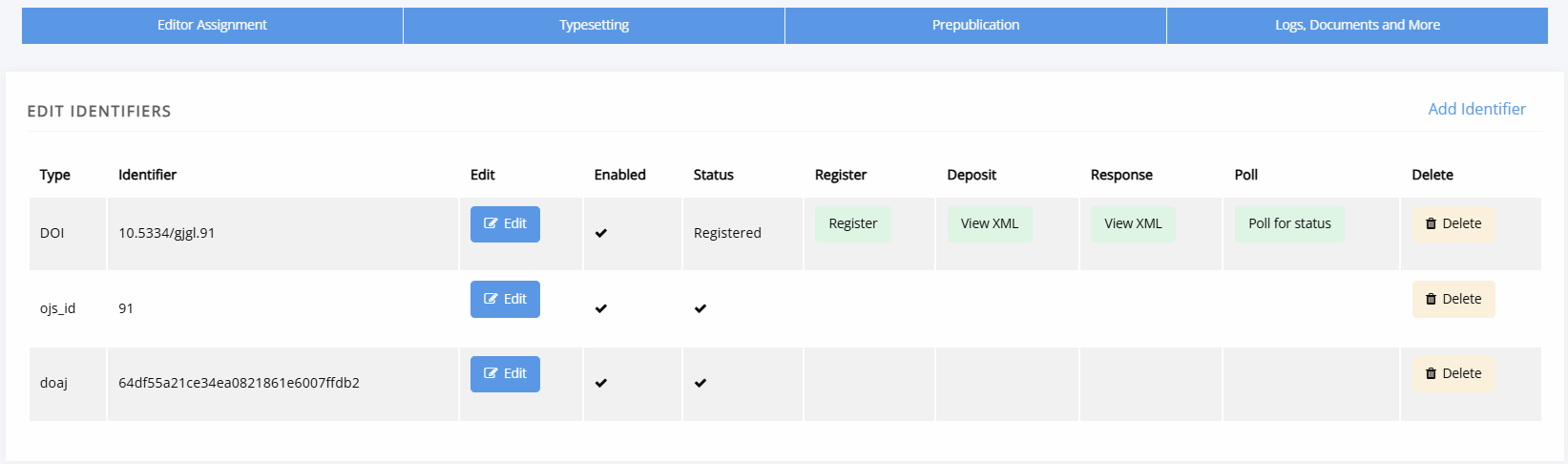
Identifiers sectionJaneway can mint CrossRef and DataCite DOIs and, if working with data imported from other platforms, can also maintain existing publisher IDs such as an OJS ID. Identifiers can be managed on an individual basis or, for CrossRef DOIs, in bulk.
Identifiers associated with an article can be found through Identifiers under Logs, documents and more.
Tip
Advanced: You can also manage CrossRef DOIs in bulk at the journal level as an editor (and at the press level as a staff user) using the DOI Manager.
Note
Advanced: DataCite DOIs do not appear on the identifiers page and must be managed through the DataCite plugin.
See also: Identifiers.
ROR
ROR sectionAffiliation metadata in Janeway is managed using the Research Organization Registry. ROR assigns persistent identifiers to organizations, similar to how DOIs identify articles, ORCIDs identify people, and ISBNs identify books. This allows multiple names to be associated with a single organization, making discovery and display easier and enabling linked open data. To read more about ROR (and CRediT) on Janeway, see Metadata on Janeway.
Google Scholar
Google Scholar sectionGoogle Scholar indexing is automatic. Google uses a web crawler to identify relevant materials such as articles, monographs, preprints, and reports. It takes some time for new journals to appear on Google Scholar, and for changes to existing content to show. Google Scholar advises that changes may take 6–9 months to appear.
If your journal is not indexed correctly, contact support. When investigating indexing issues yourself, compare the galleys against the meta-tags in the HTML to check for discrepancies.
Publisher notes
Publisher notes sectionPublisher notes appear on the article page below the abstract and how-to-cite block. They can be used to notify readers of minor changes to a paper, such as a post-publication correction for a spelling error. Publisher notes can be edited from the Article archive page.